Documentation
Learn TiePlan, one step at a time
From creating your account to printing the blast pack, every button, drag and shortcut, shown with real screenshots. Work through it in order, or jump to any topic.
01Getting started
Create your account
Start at the sign-up screen. Enter your name, work email, a password, and the name of your site.
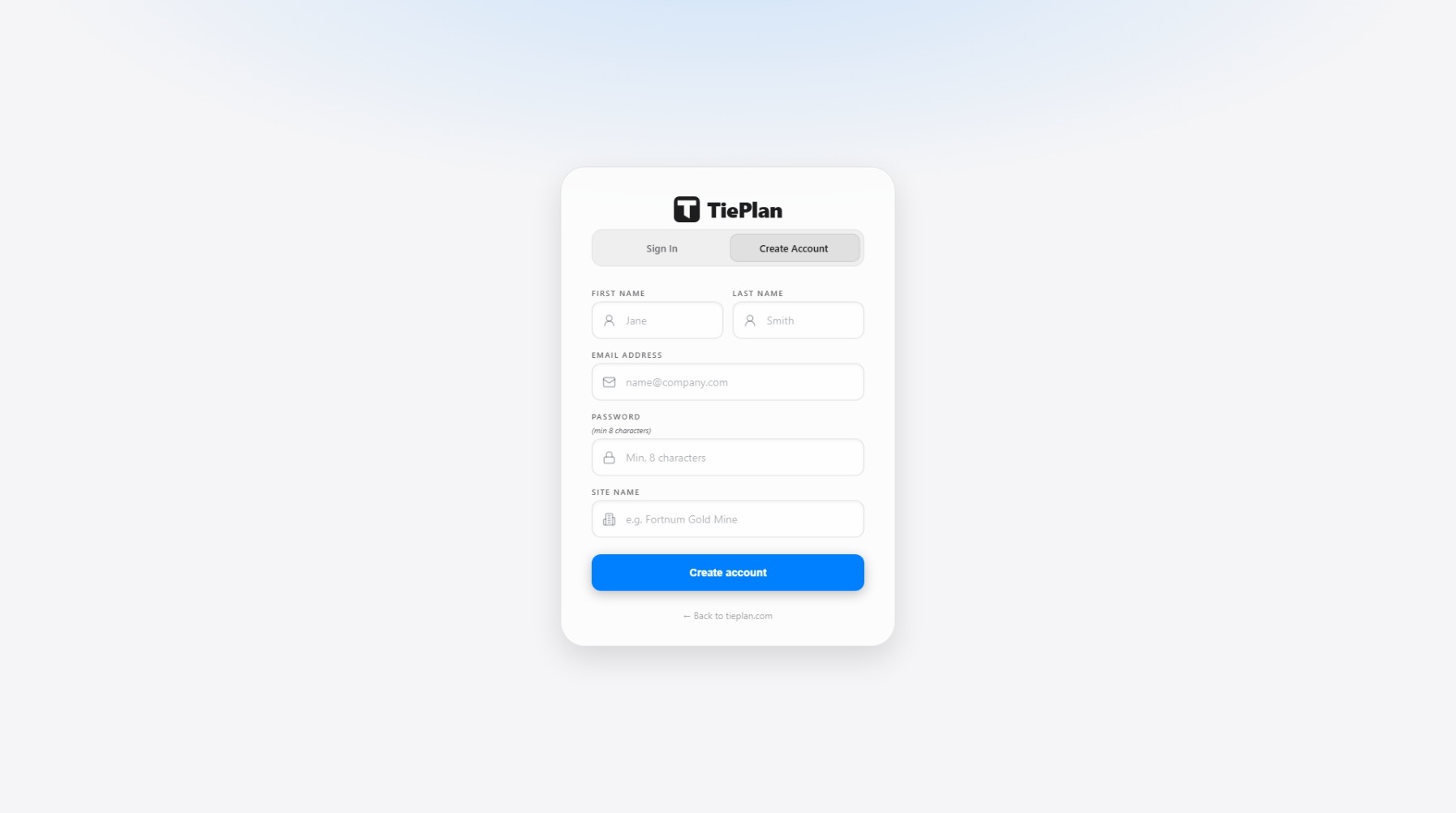
Already have an account? Switch to Sign In at the top of the card. The first person to sign up for a site becomes its Site Champion, the admin who manages branding, documents and team seats.
02Getting started
Confirm your email
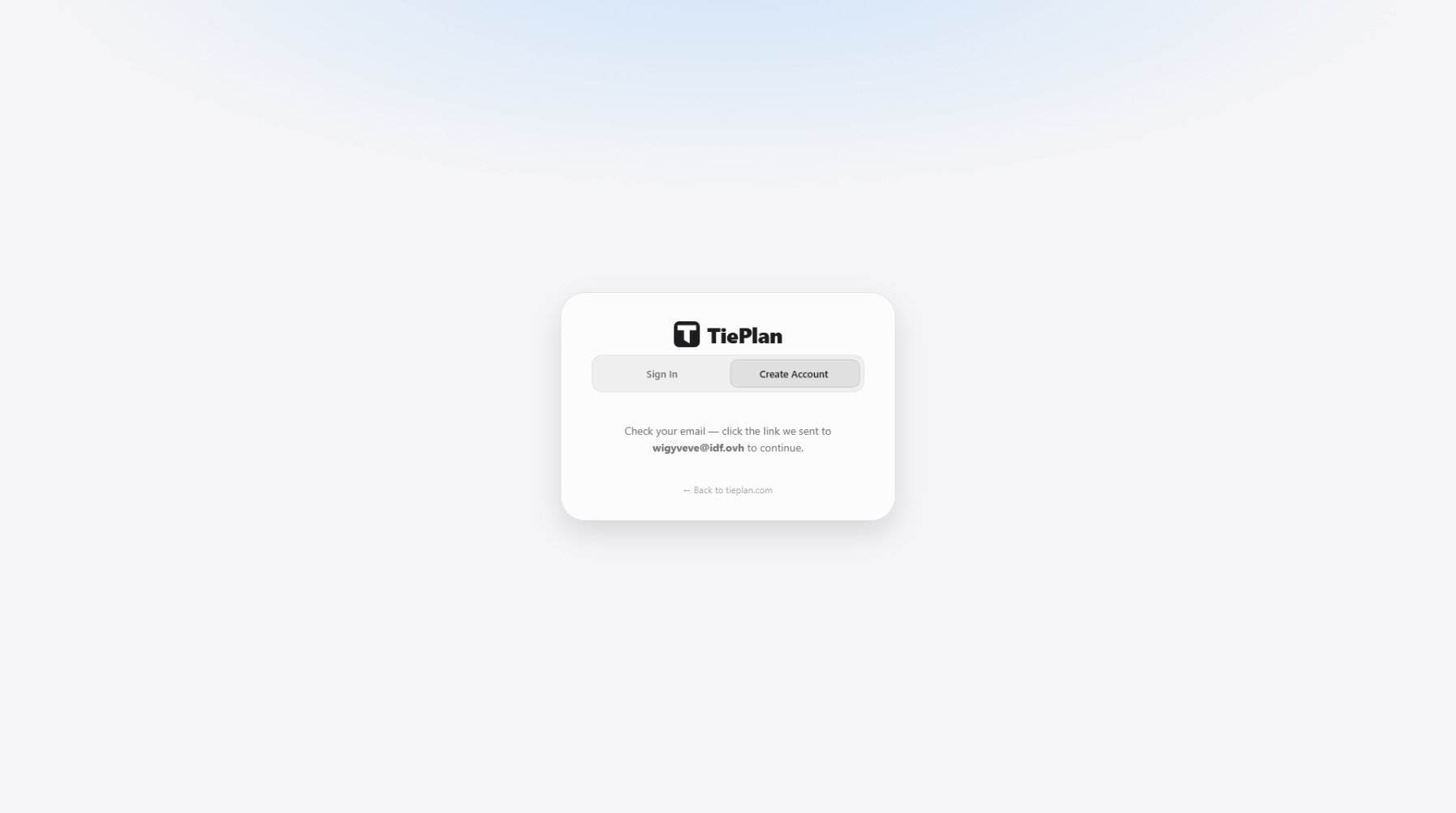
We send a verification link to the address you entered. Click it to activate the account.
03Getting started
Start your free trial
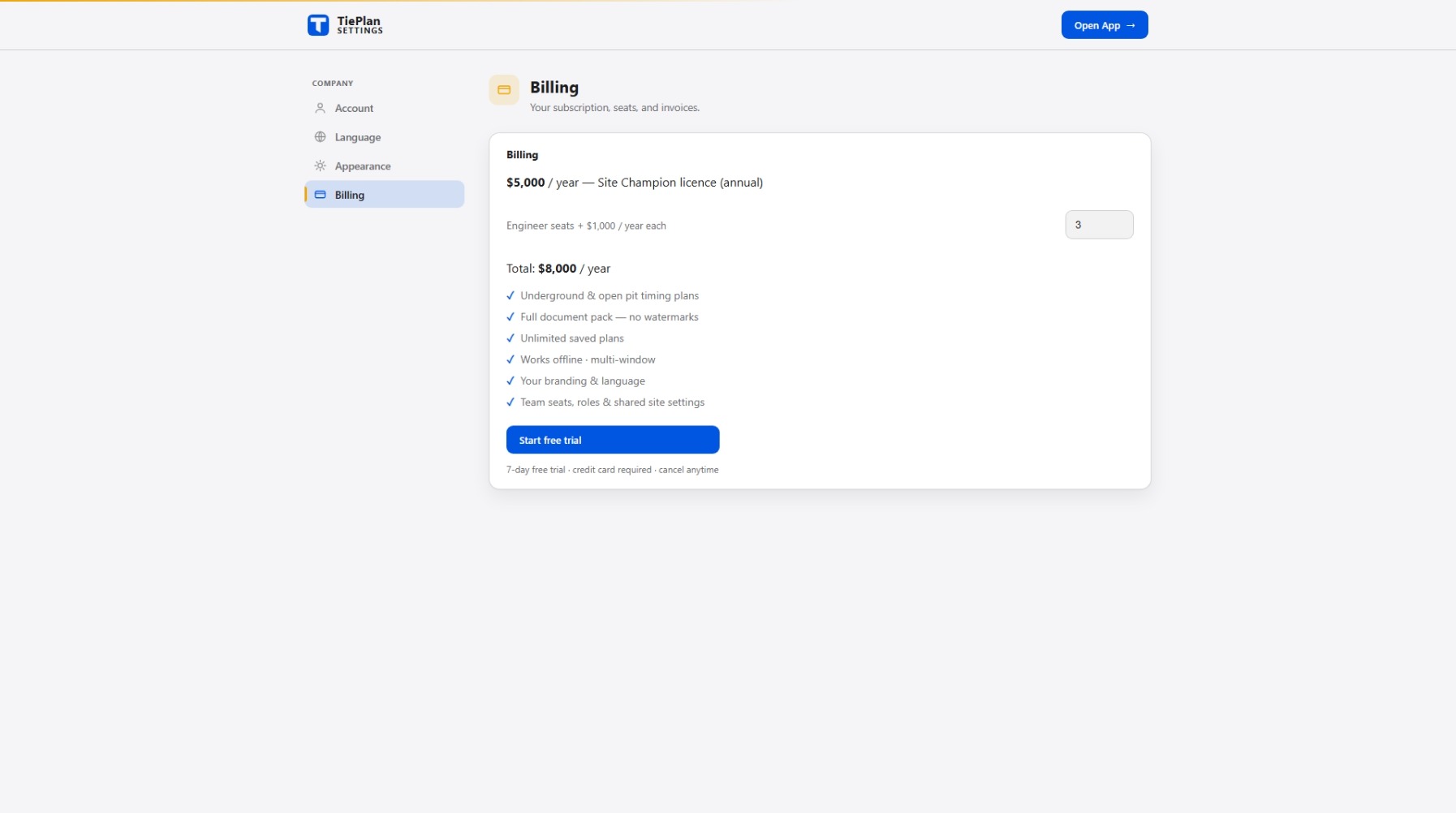
Open Settings → Billing, add engineer seats for your team if you need them, and start the 7-day free trial. Checkout is handled securely by Stripe.
04The app
The workspace
The app has four parts: the toolbar across the top, the views menu on the left, the tool bar along the bottom, and the plan in the middle.
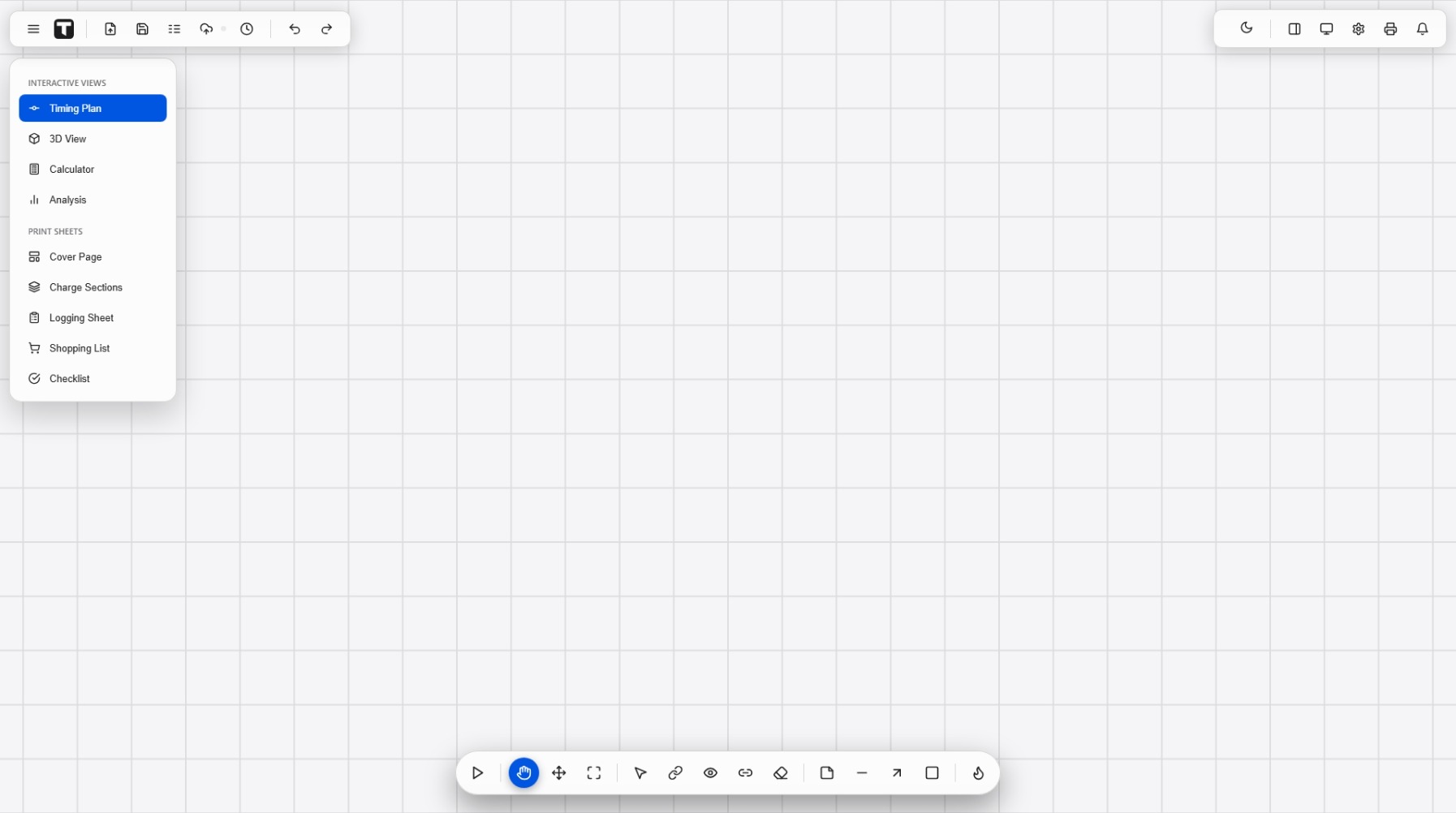
The top-left buttons handle files and history, Load CSV, Save CSV, Map columns, Save plan, Recent, Undo and Redo. The top-right holds the theme toggle, panel toggles, New Window, Settings, Print and the activity log.
The bar along the bottom holds every canvas tool. Point at one, or tap it, to see what it does.
05Your data
Import your holes (CSV)
This is where every plan begins. TiePlan reads a CSV export from Deswik or any other drill package and draws the holes for you.
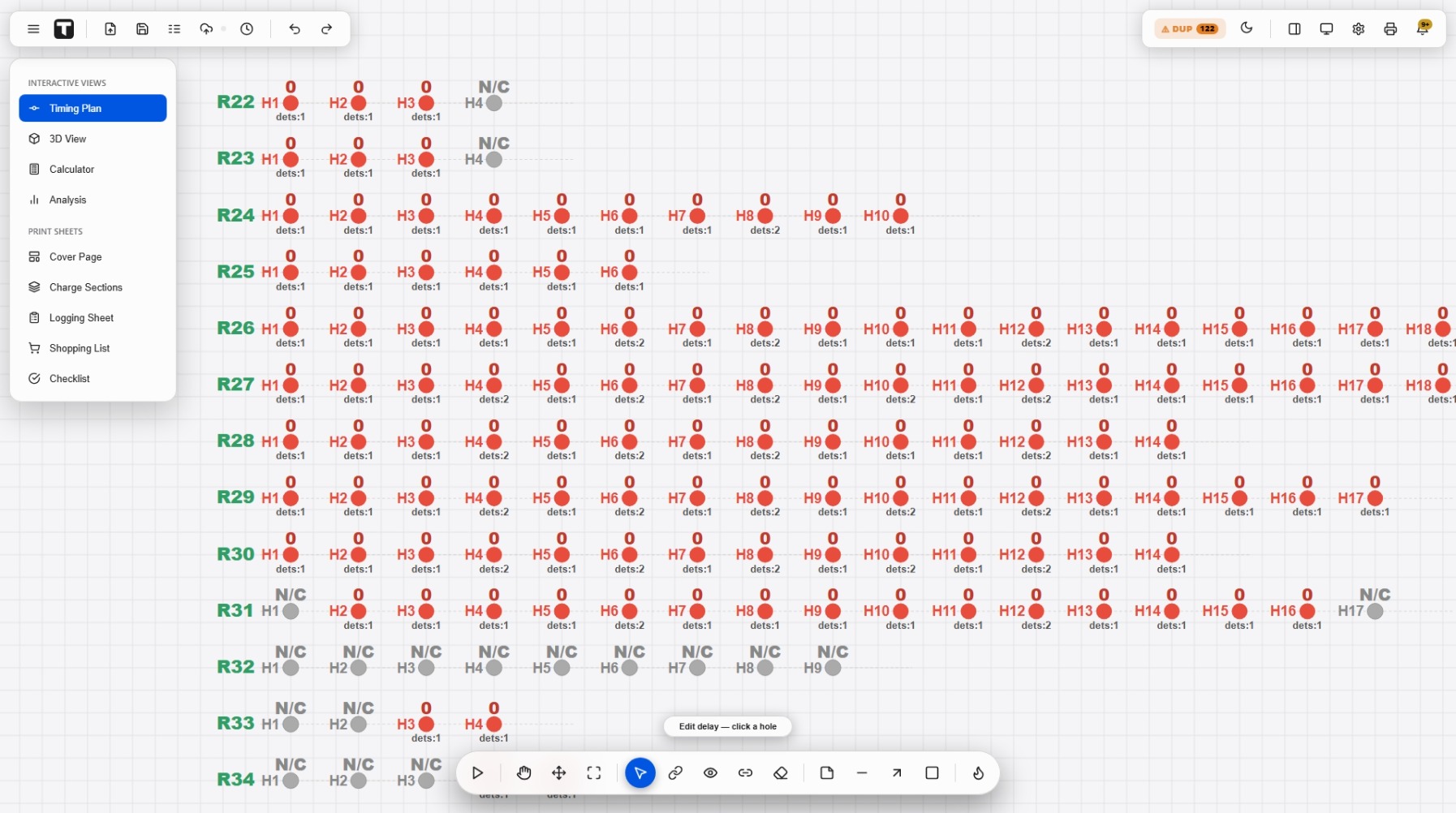
.csv file. Dropping a .dtm/.str file instead adds a 3D surface.06Your data
Map columns for any CSV
A Deswik dump loads with no setup. If your export uses different column names, match them once with Map columns.
Each TiePlan field gets a dropdown, pick the matching column from your file. A live preview shows the first rows so you can check the match. Ring, Hole and Charge are required; the Apply button stays off until all three are set.
Save a mapping as a Profile and it’s a one-click choice next time the same format comes in.
07The canvas
Move around: pan & zoom
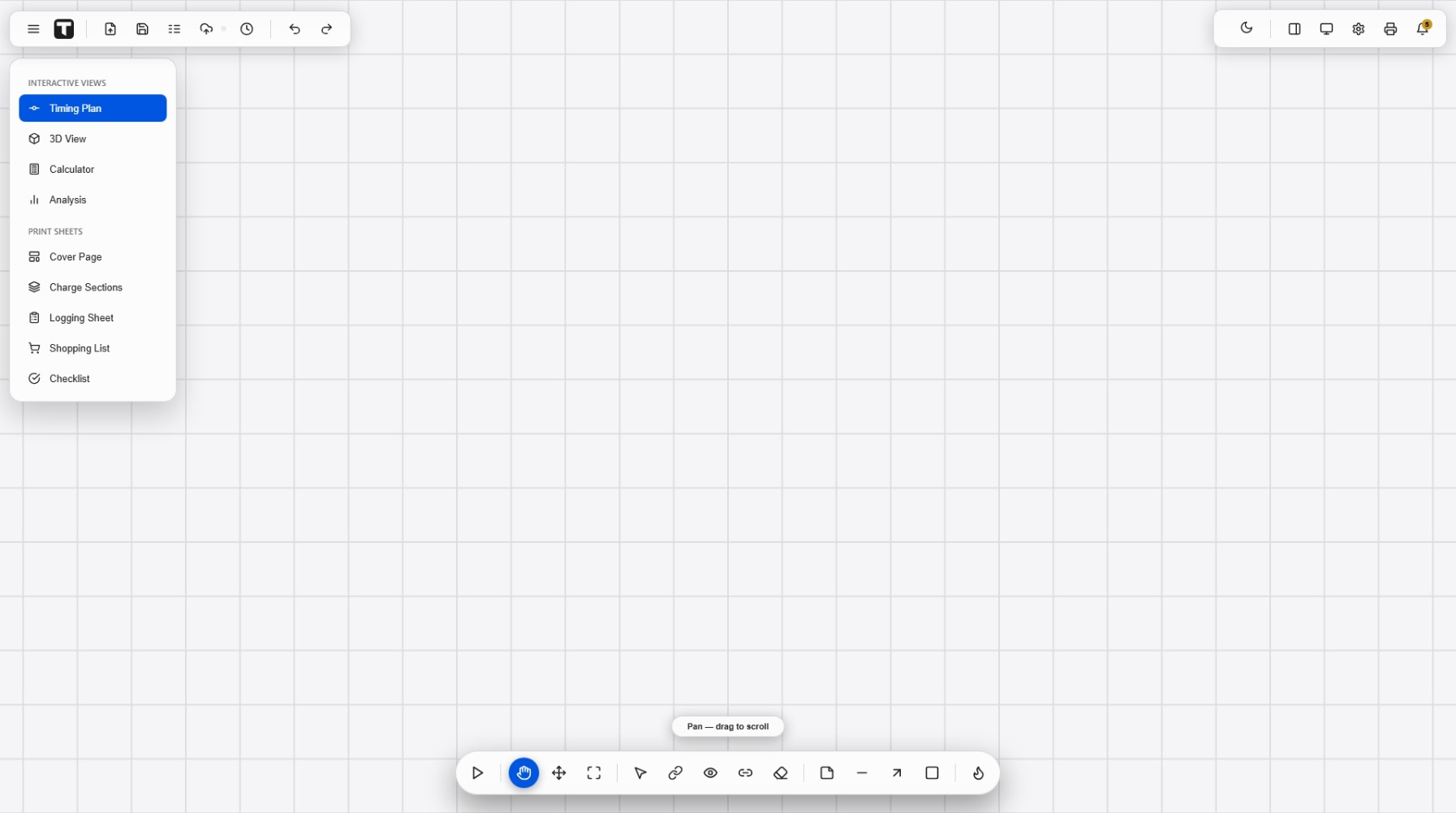
With the Pan tool, drag the canvas to move it. Scroll the mouse wheel to zoom toward the cursor.
08Timing
Enter the delays
Pick the Edit delays tool and click a charged hole. A small panel opens where you set its delay in milliseconds.
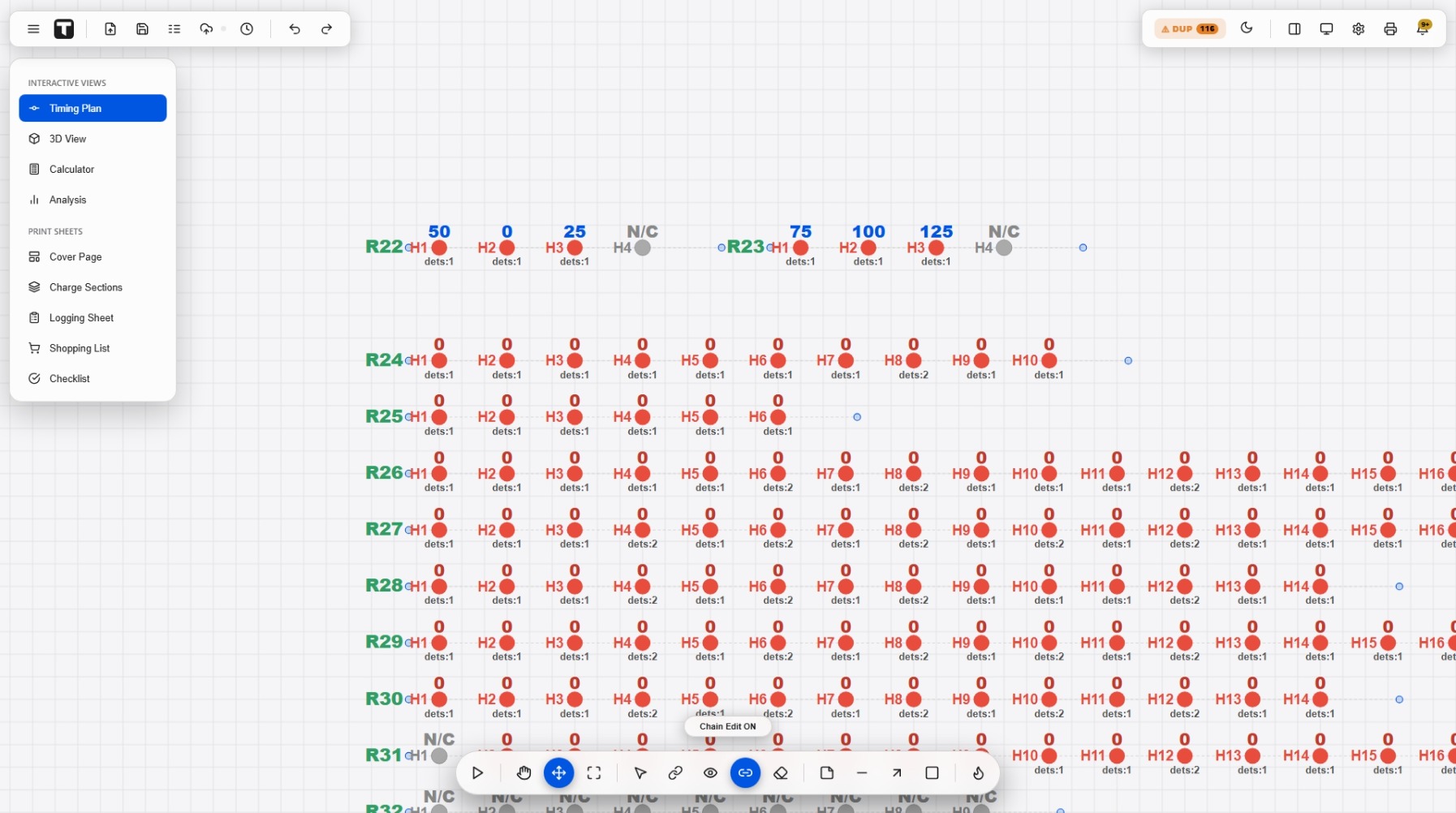
The panel keeps a Reference value, always the last delay you set. The quick buttons (+25 +50 +100) add to that reference, so moving hole to hole builds the sequence for you: 0 → 25 → 50, and so on. Need an exact number? Type it in the manual box and press Enter.
09Timing
Tie-up & chain editing
Draw the firing links between holes, and shift a whole sequence at once when a delay changes.
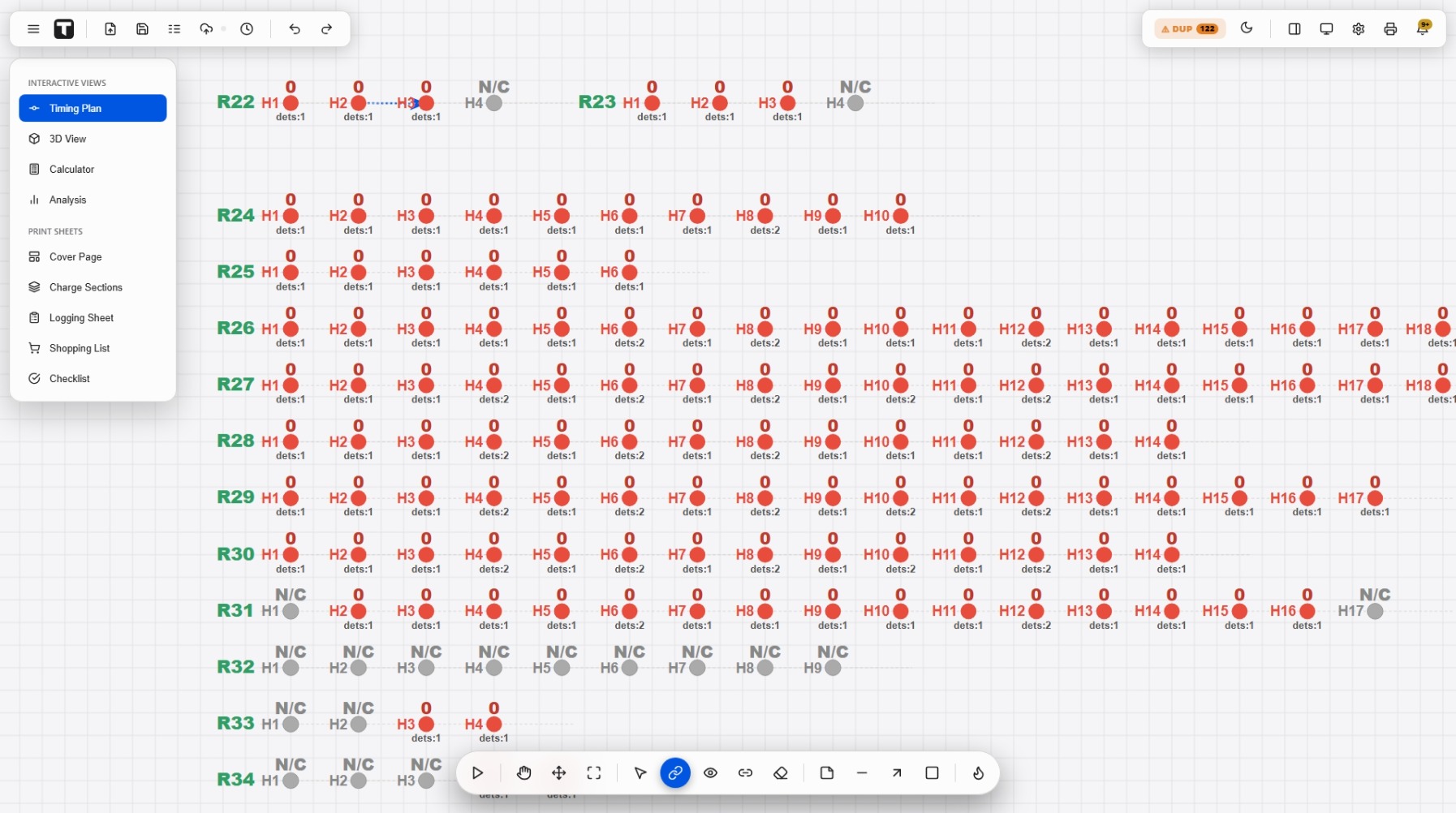
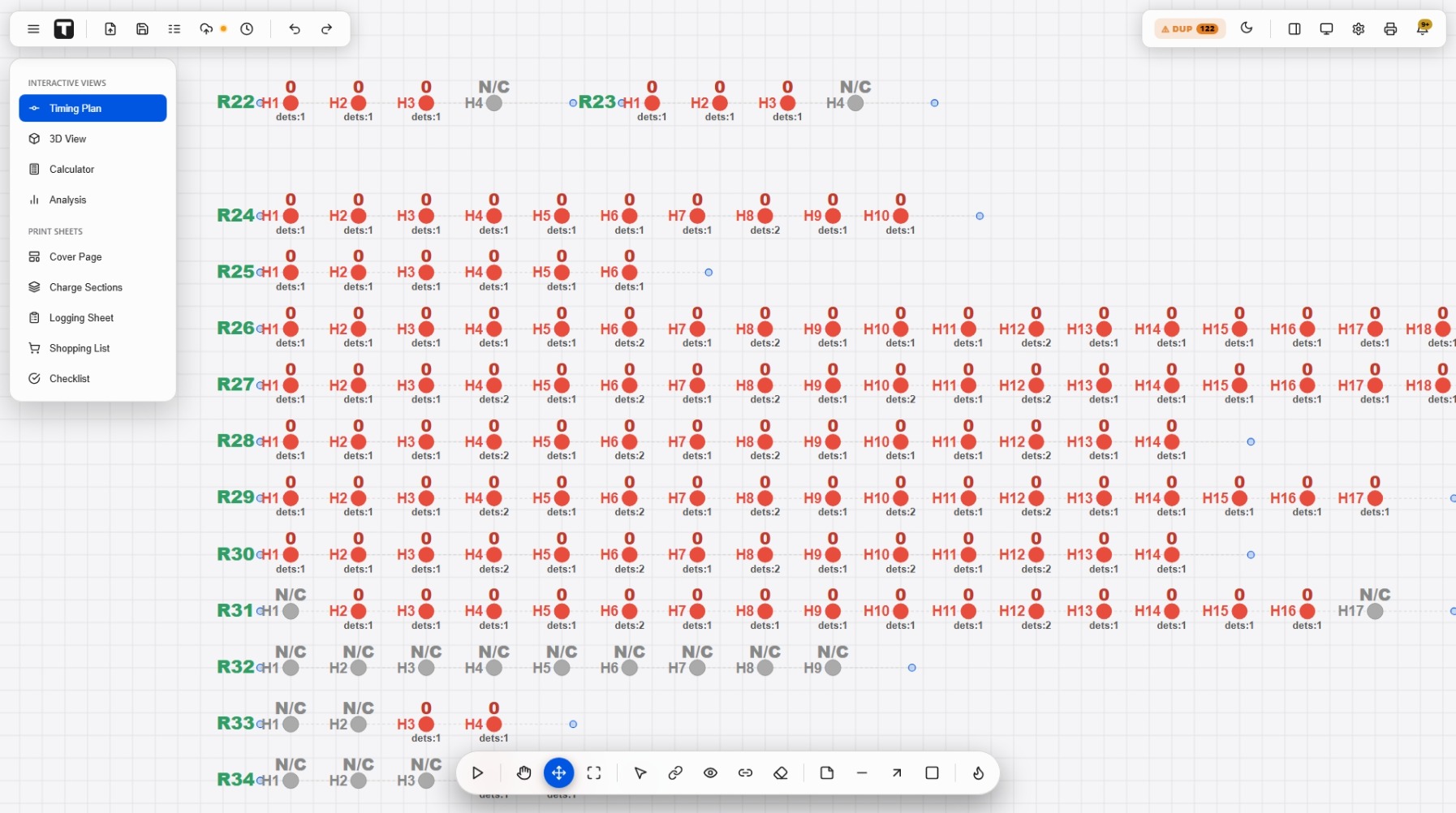
With the Tie-up tool, drag from a charged hole to another; when you release, the delay panel opens with the first hole’s value as the reference, so the link and the timing stay in step.
Turn on Chain Edit and changing one hole’s delay shifts every hole with a higher delay by the same amount, retime a run without touching each hole. Chain View draws the gap between consecutive delays right on the ring line.
10The canvas
Move holes, rings & rows
Switch to the Move tool to nudge things into place. What you drag depends on where you grab.
11Timing
Fill in the plan details
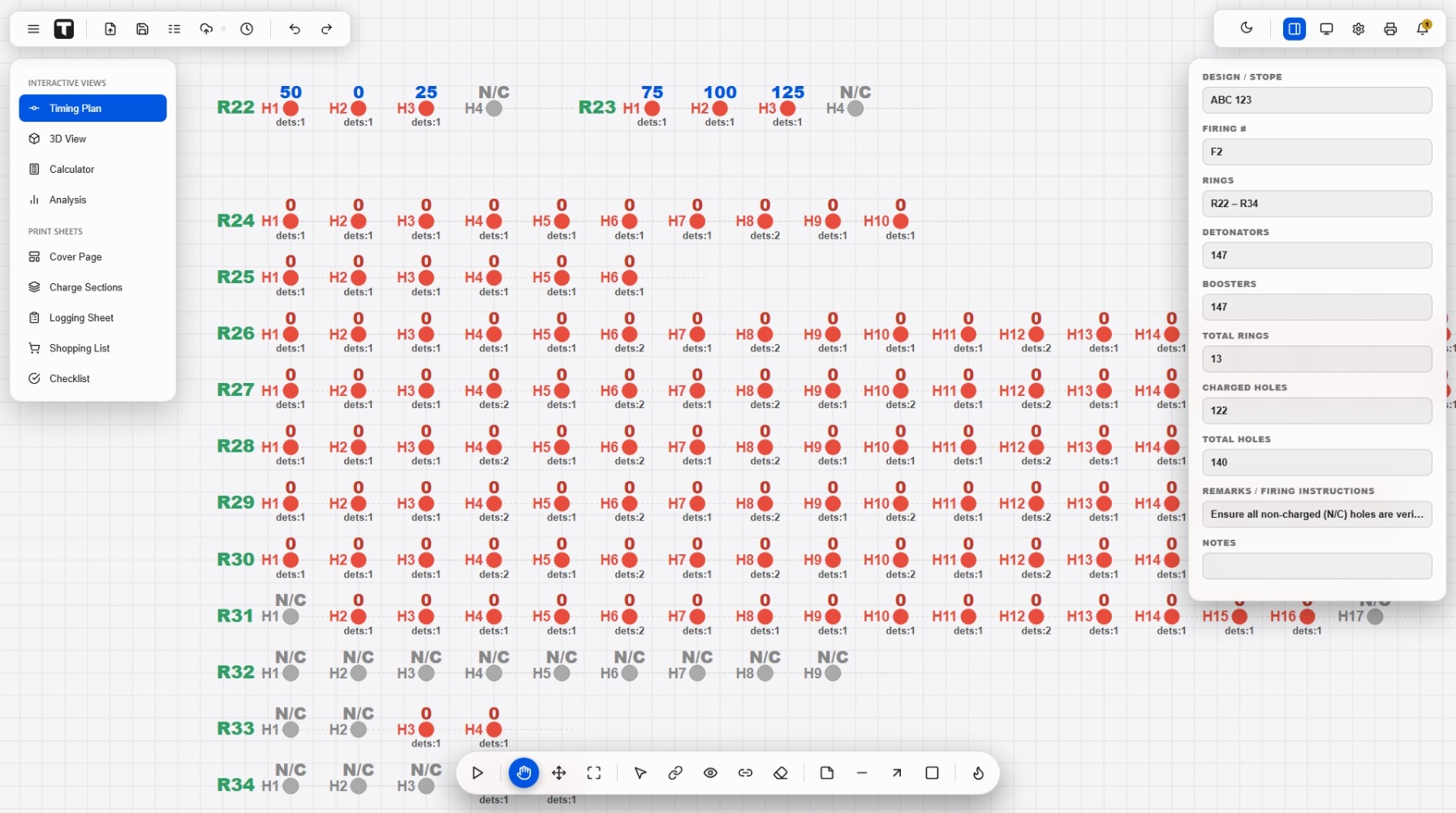
The panel on the right holds the facts that print on every document, stope, firing number, ring range, detonator and booster counts, and firing instructions.
12Visualise
See the blast at a glance: heatmap
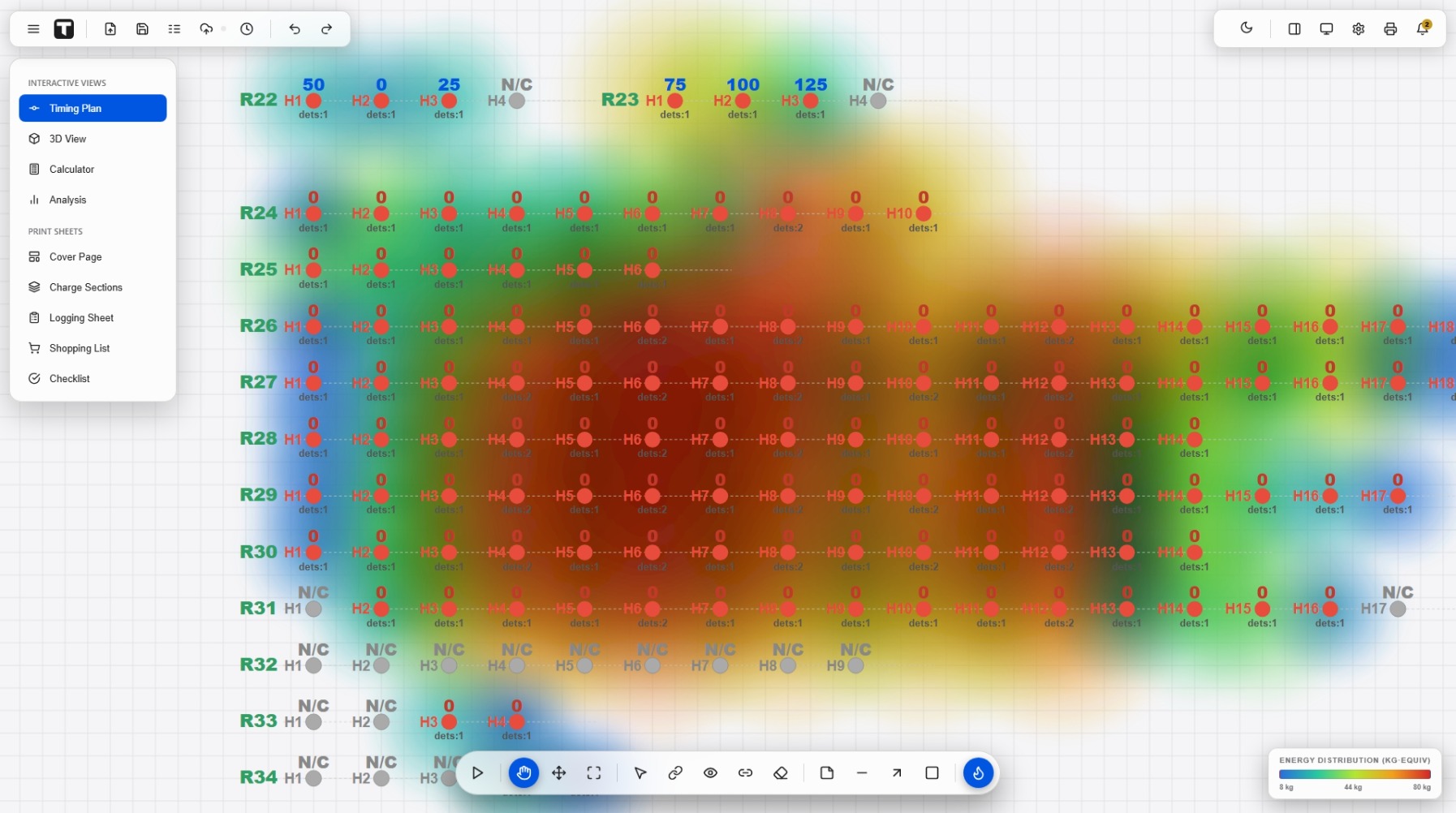
The Heatmap shades the plan by a value you choose. Open its menu to pick the mode.
13Mark up
Annotate the plan
Add notes, boxes, lines and arrows to call out anything the crew needs to see. Pick a tool and drag on the canvas.
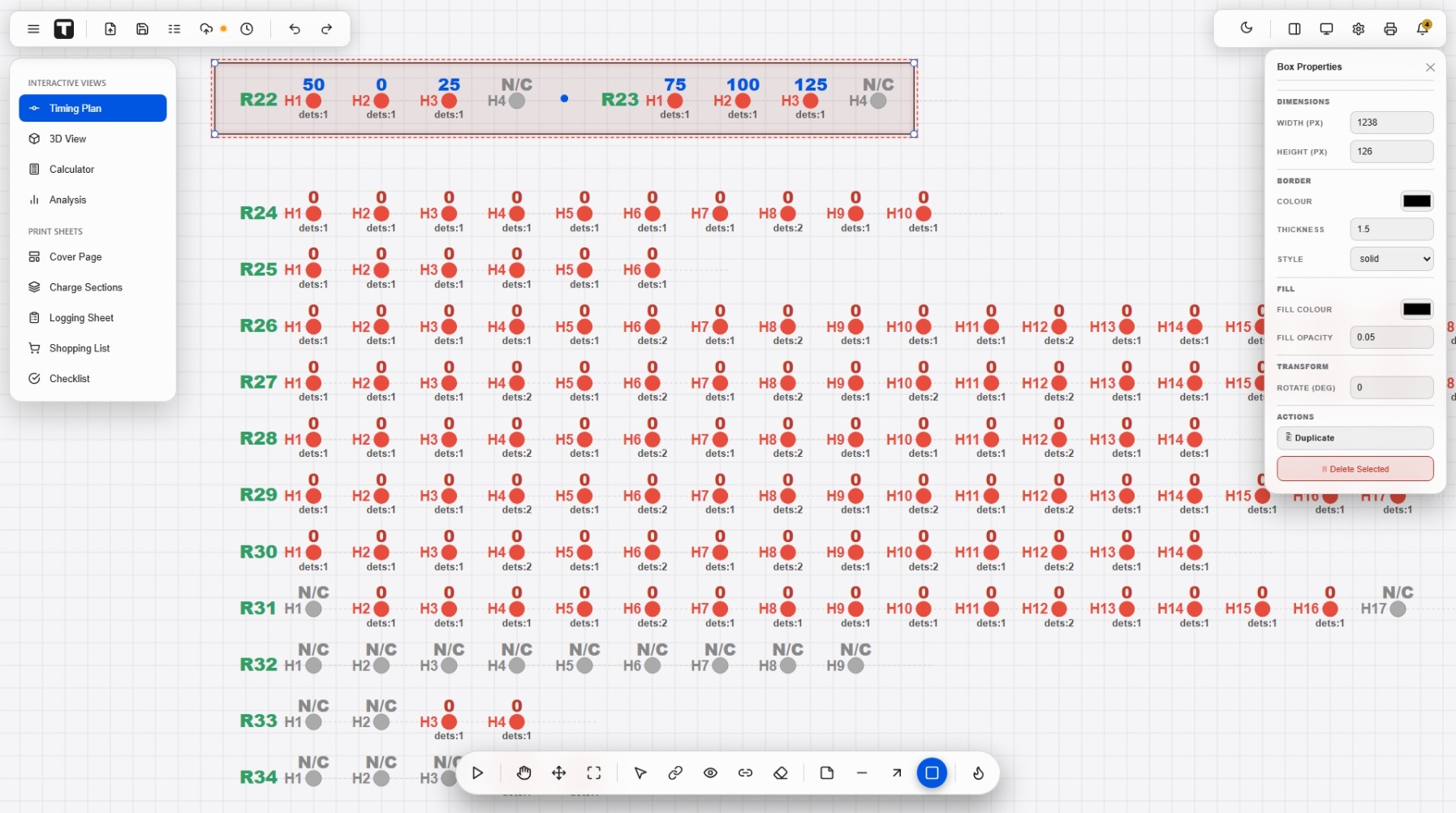
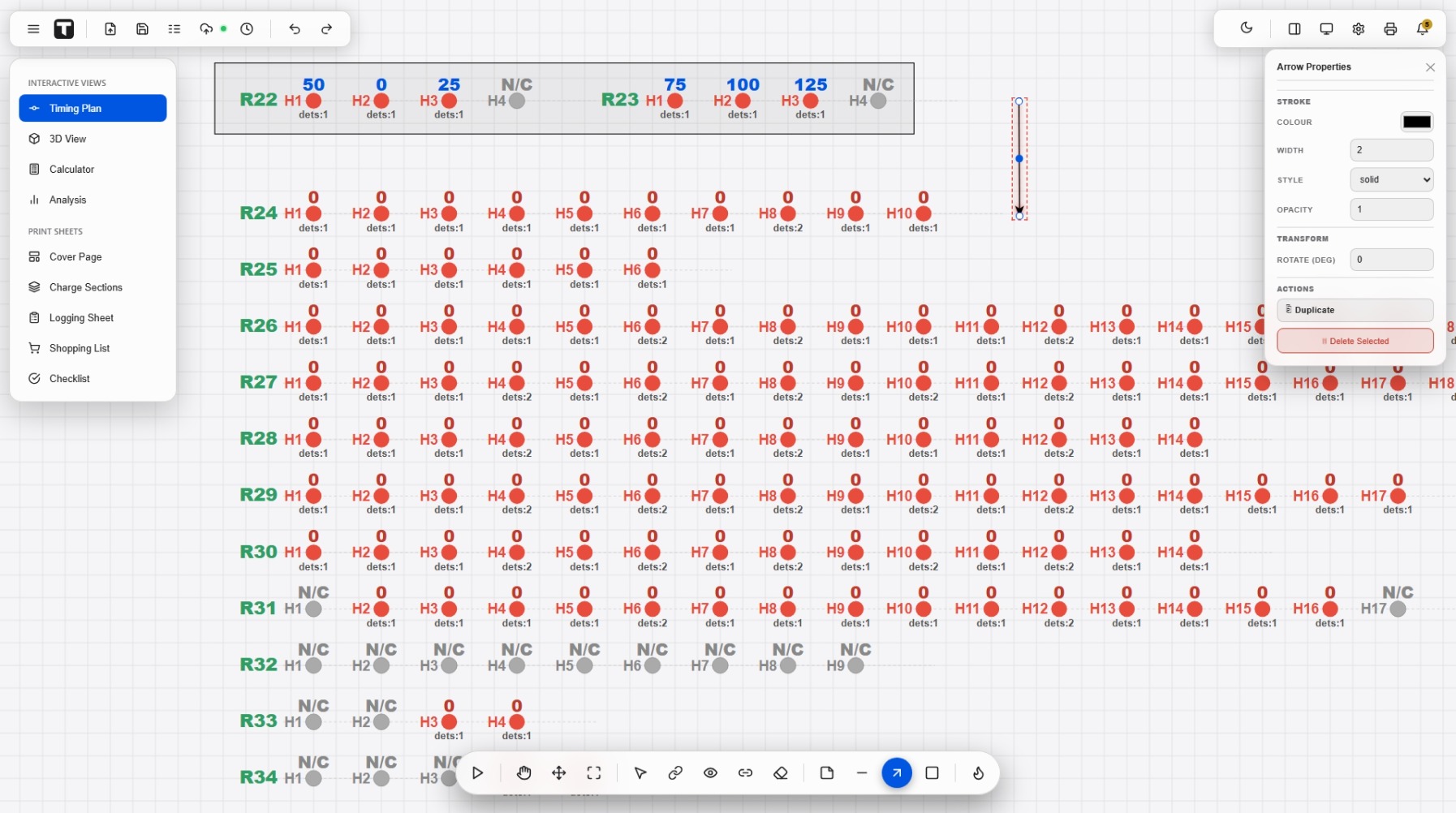
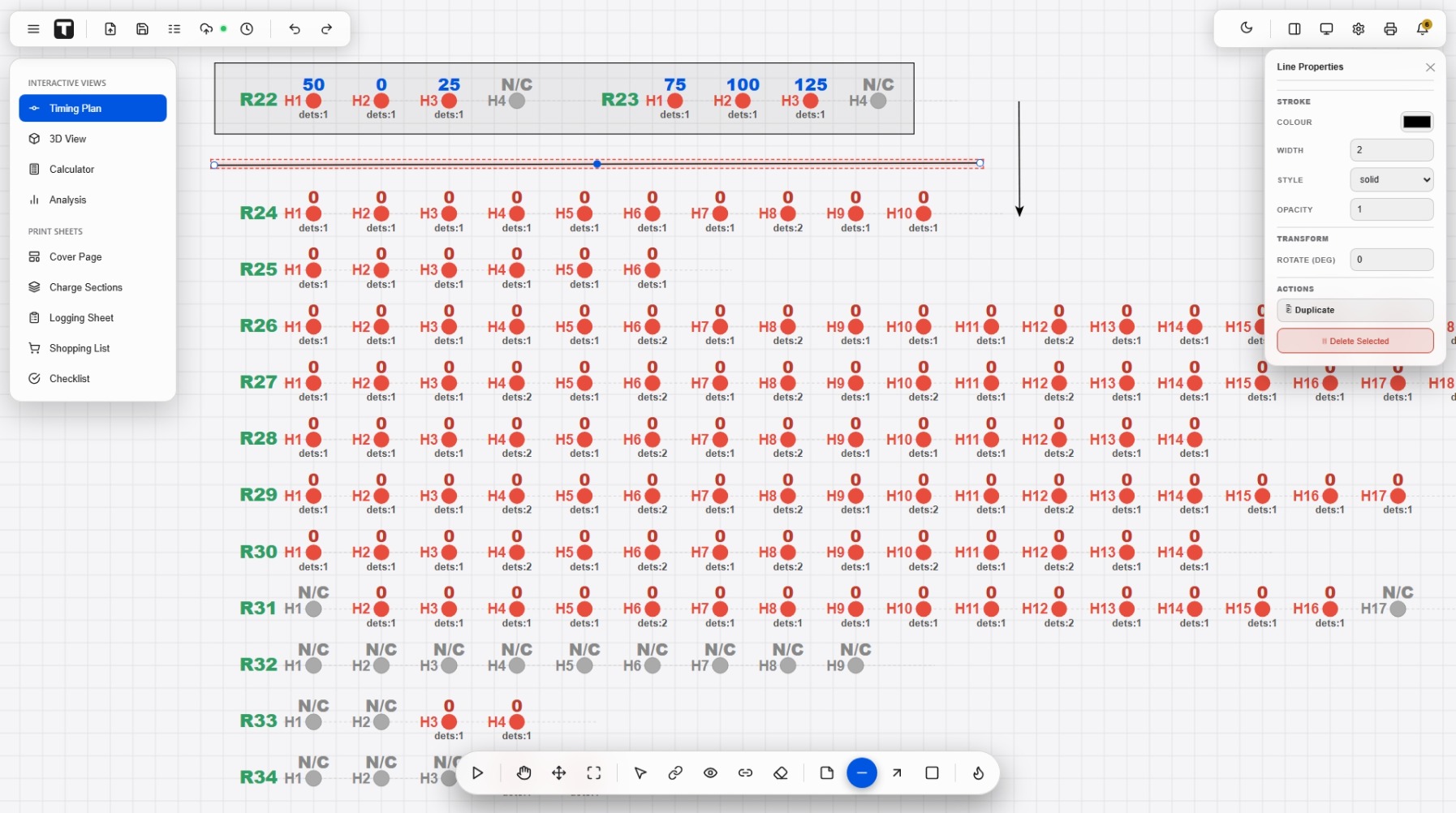
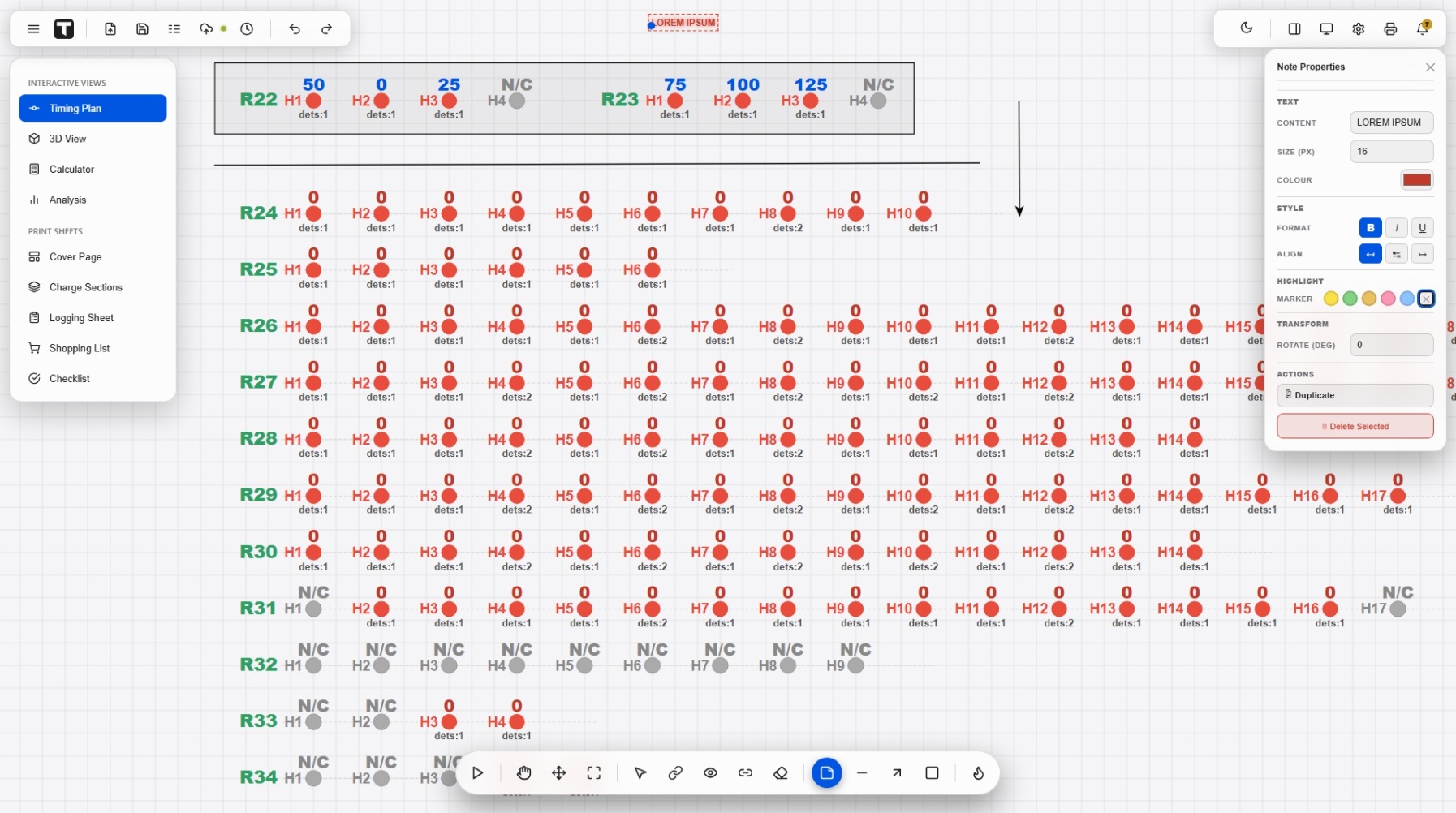
Click a shape to select it, handles appear to move or resize it, and a Properties panel sets colour, thickness, fill and rotation. Copy, paste and duplicate with Ctrl+C / V / D; remove it with Delete. Your marks save with the plan.
14The canvas
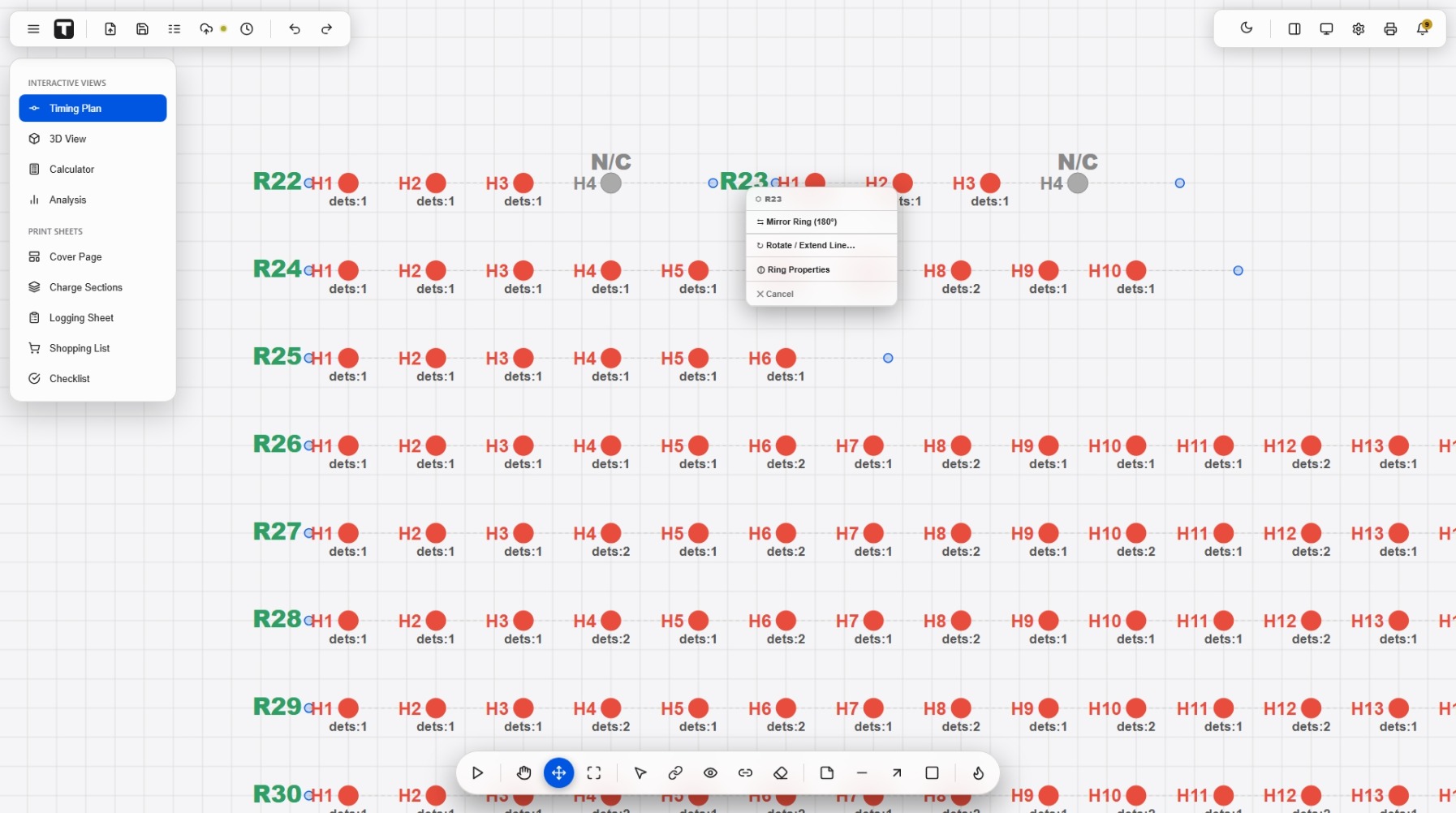
Ring actions
Right-click a ring’s name for quick operations on the whole ring.
15Timing
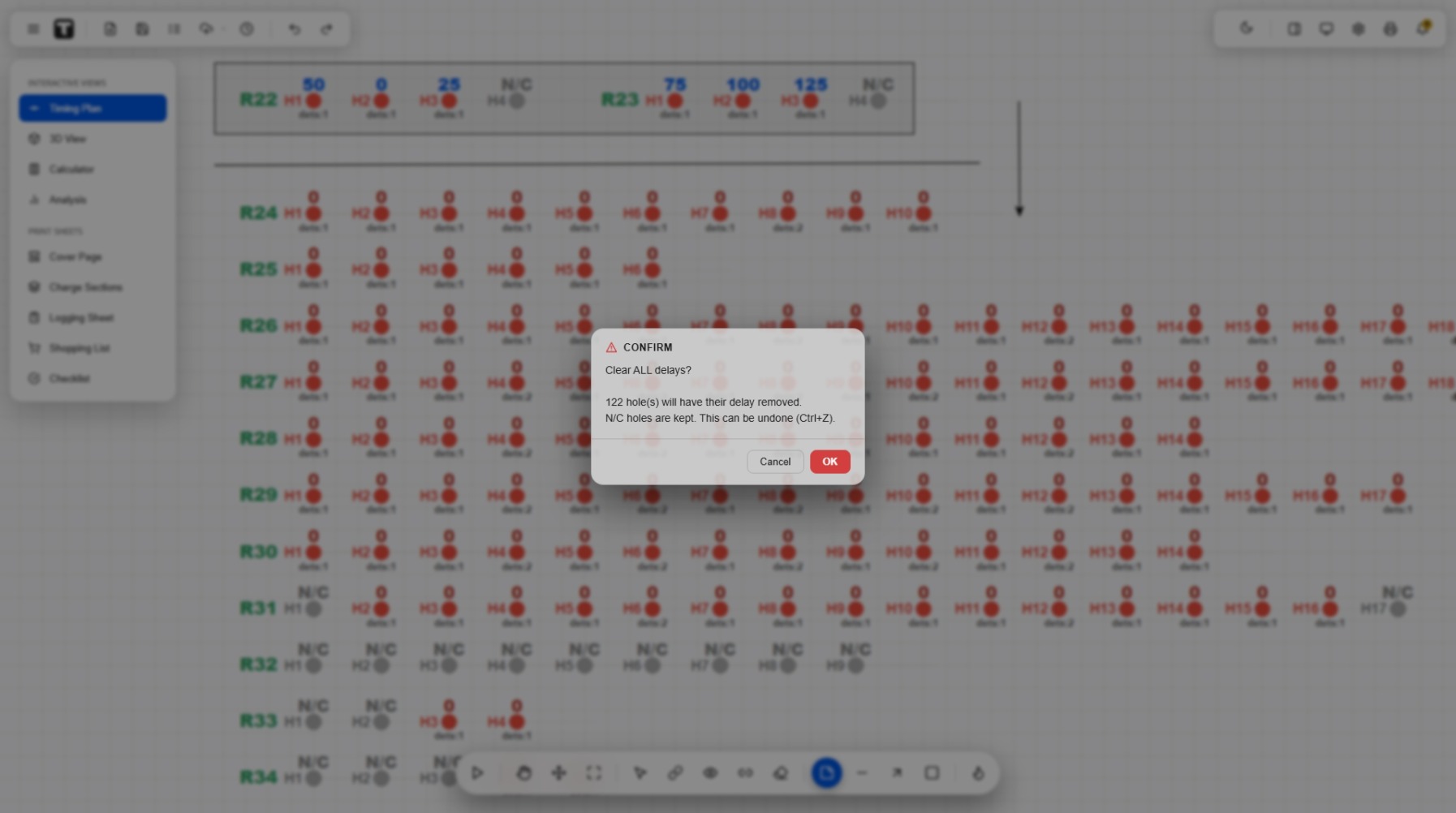
Clear all delays safely
Starting the timing over? The Clear delays button wipes every delay in one step.
16Visualise
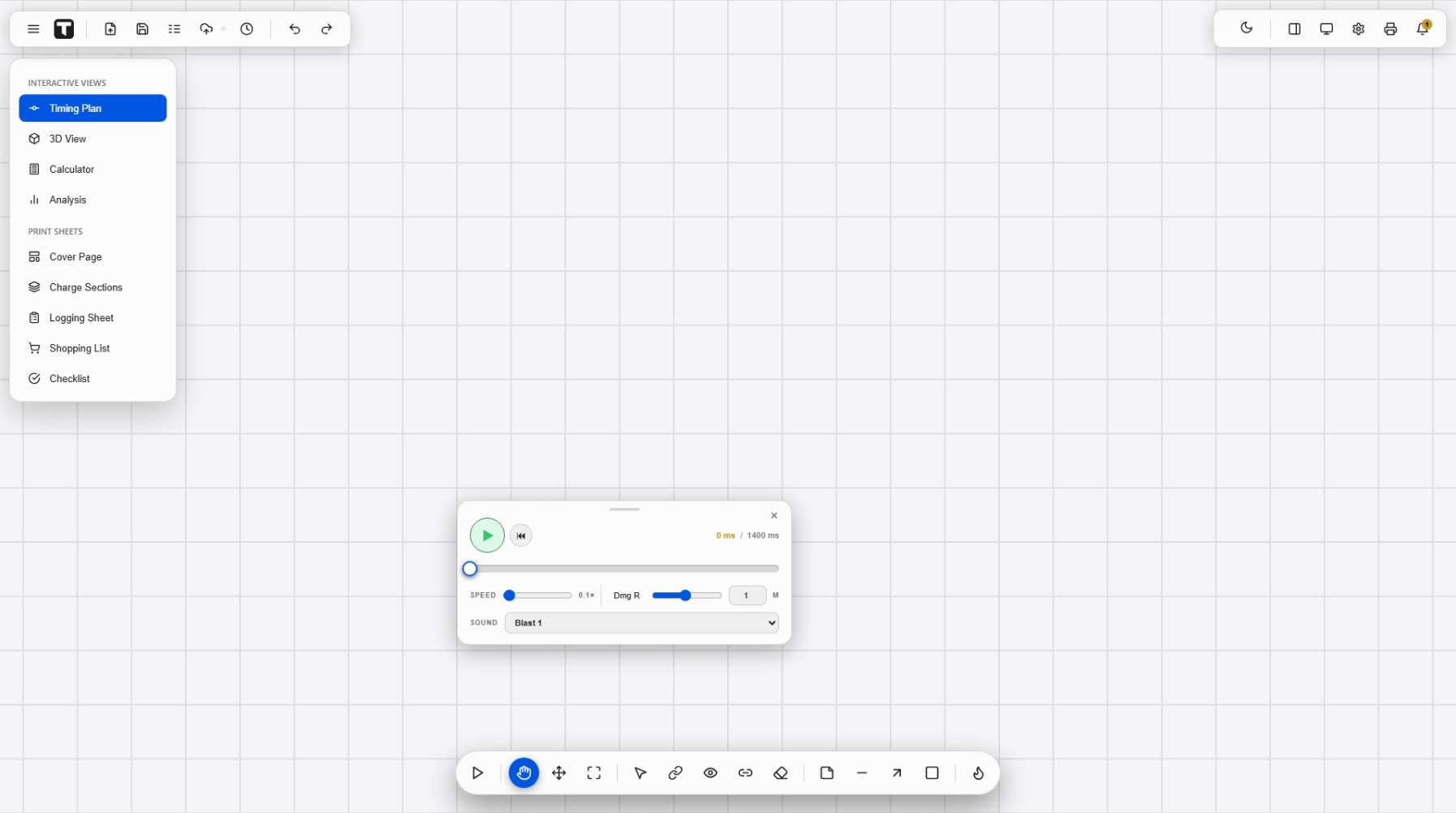
Simulate the firing
Press Simulation to play the blast through in time. Watch holes fire in sequence and catch timing problems before site.
173D
Inspect in 3D
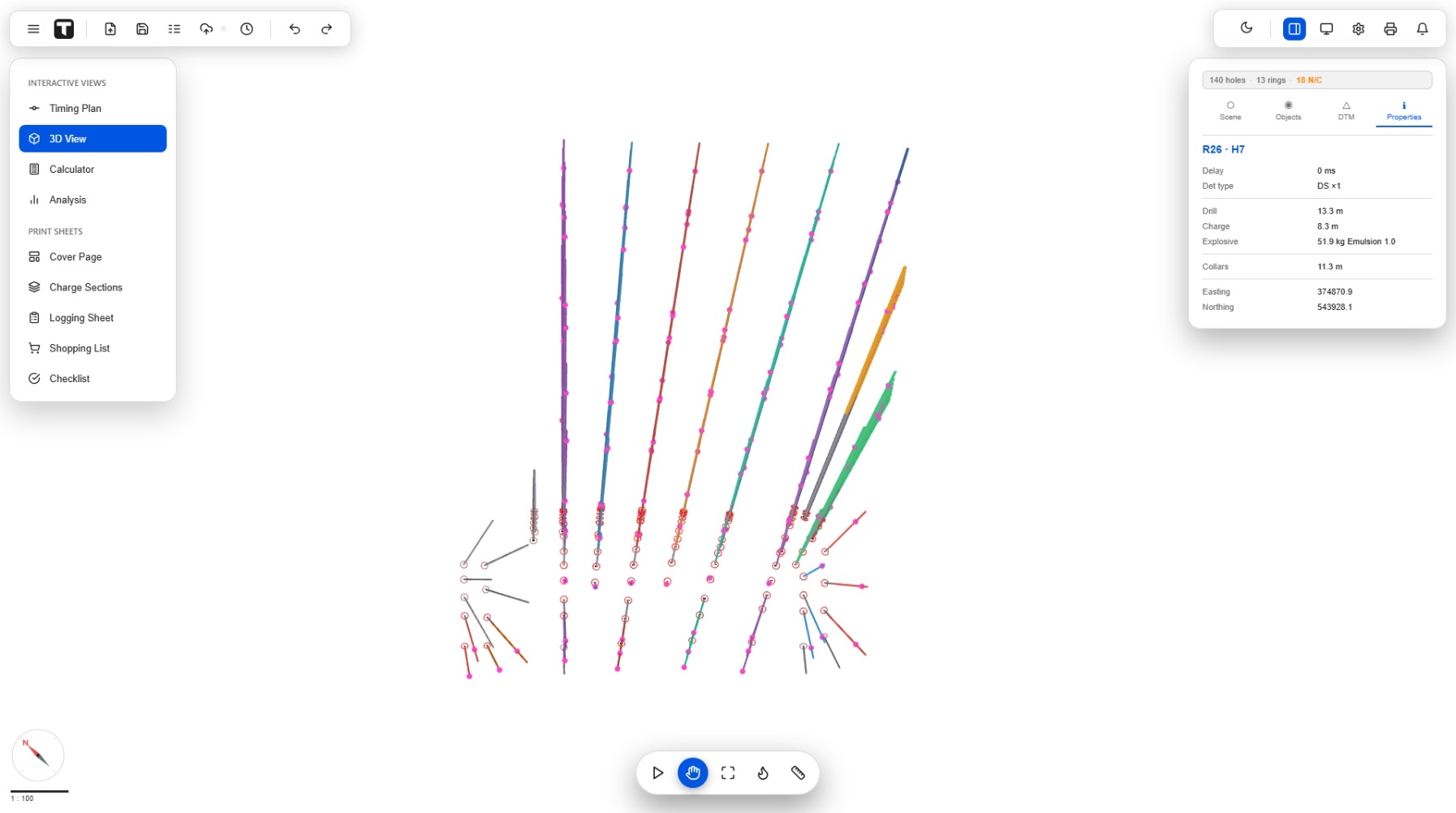
Open 3D View to see the holes in their real geometry. Left-drag to orbit, scroll to zoom, right-drag to pan.
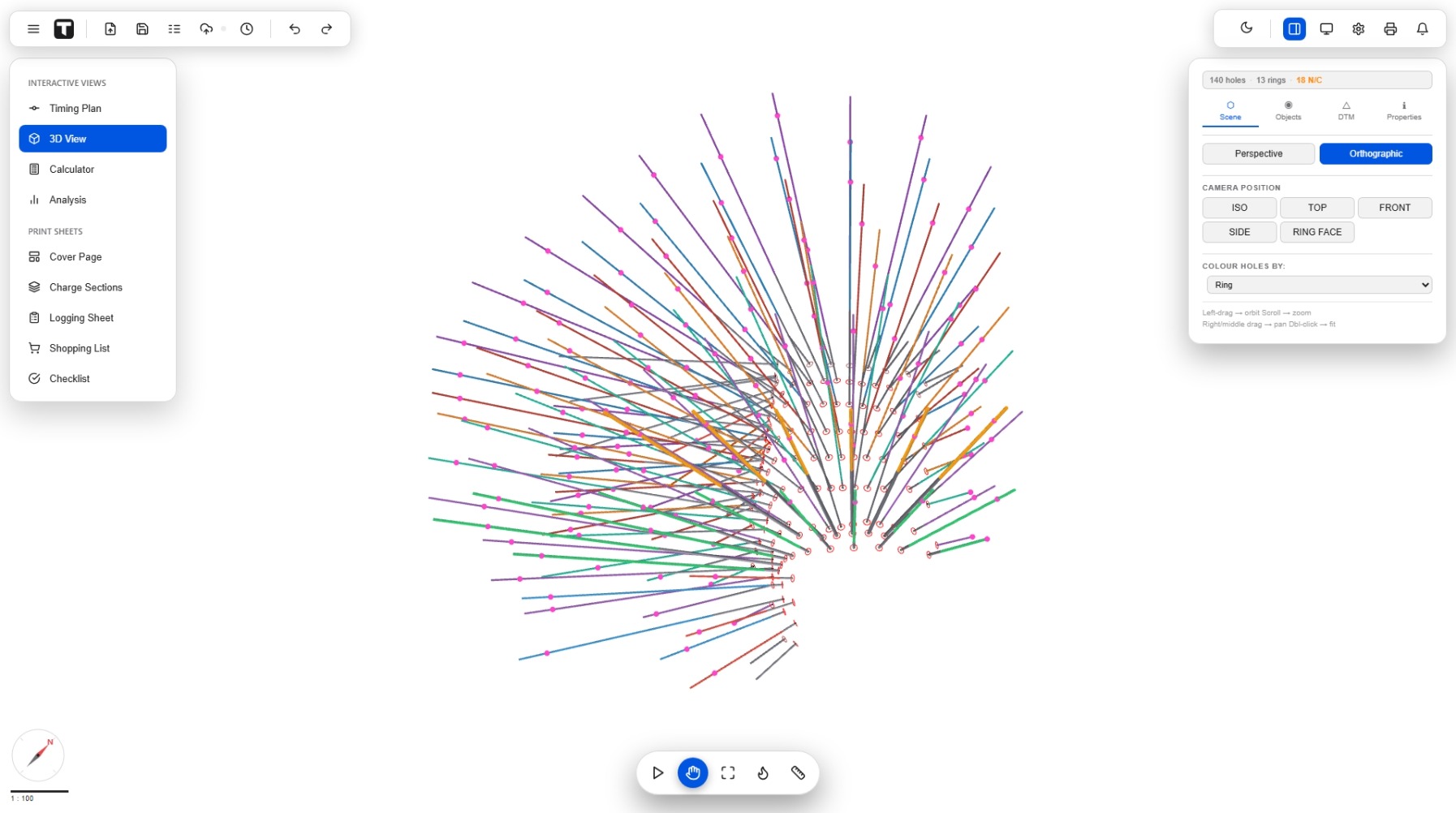
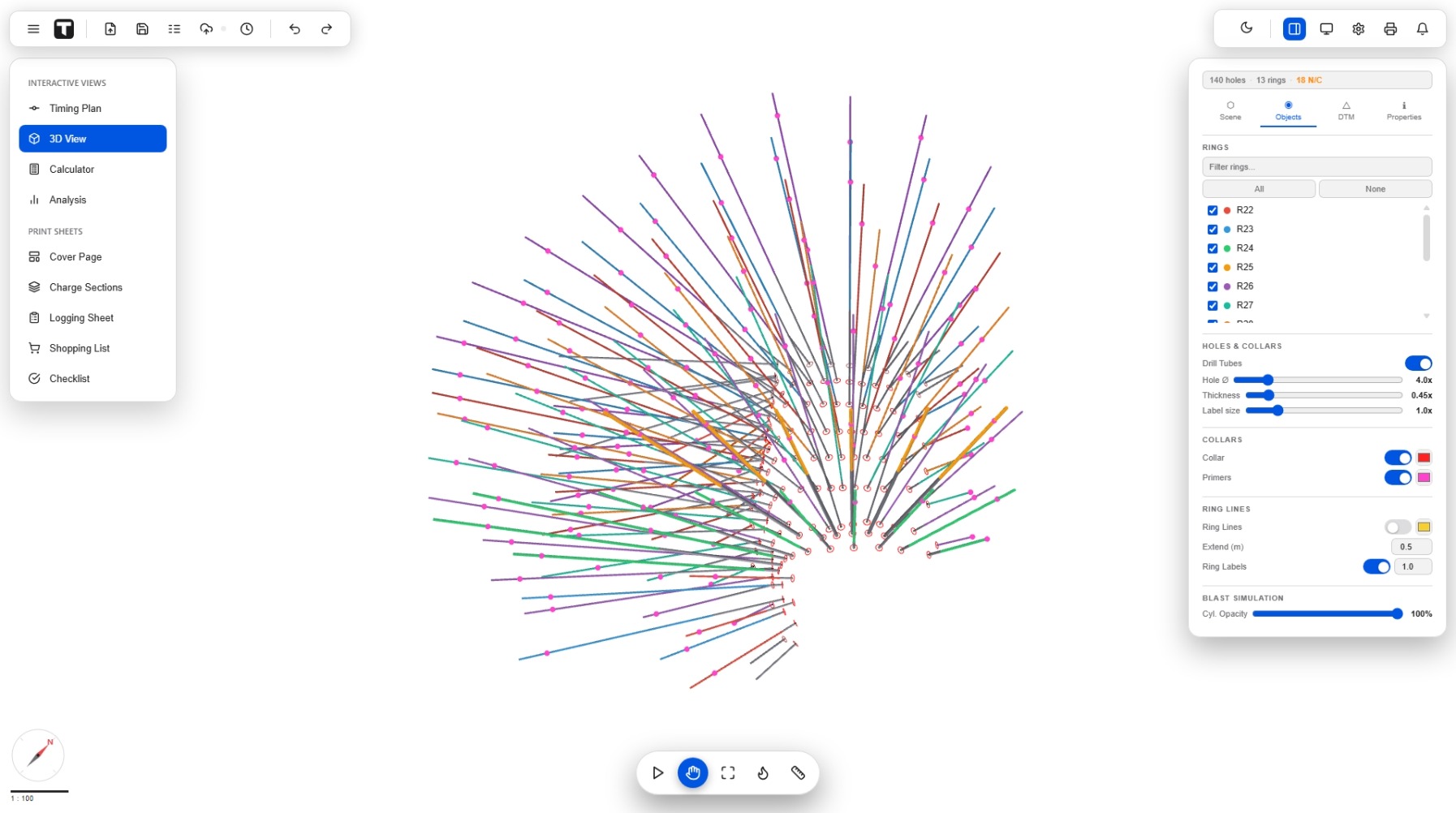
The side panel has four tabs: Scene (camera presets, colour-by), Objects (filter rings, size the holes and labels), DTM (surfaces) and Properties, click any hole to read its full detail.
183D
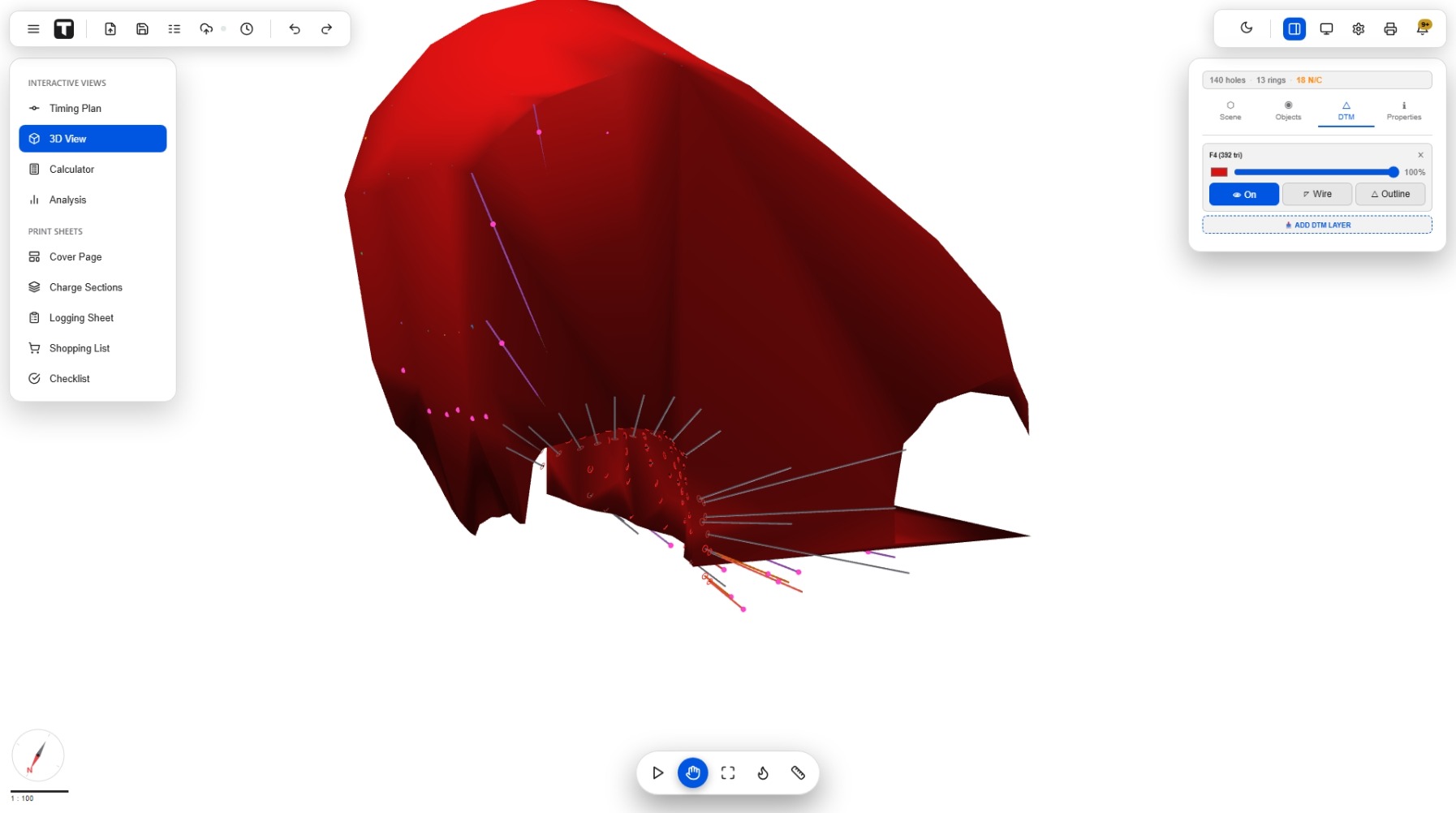
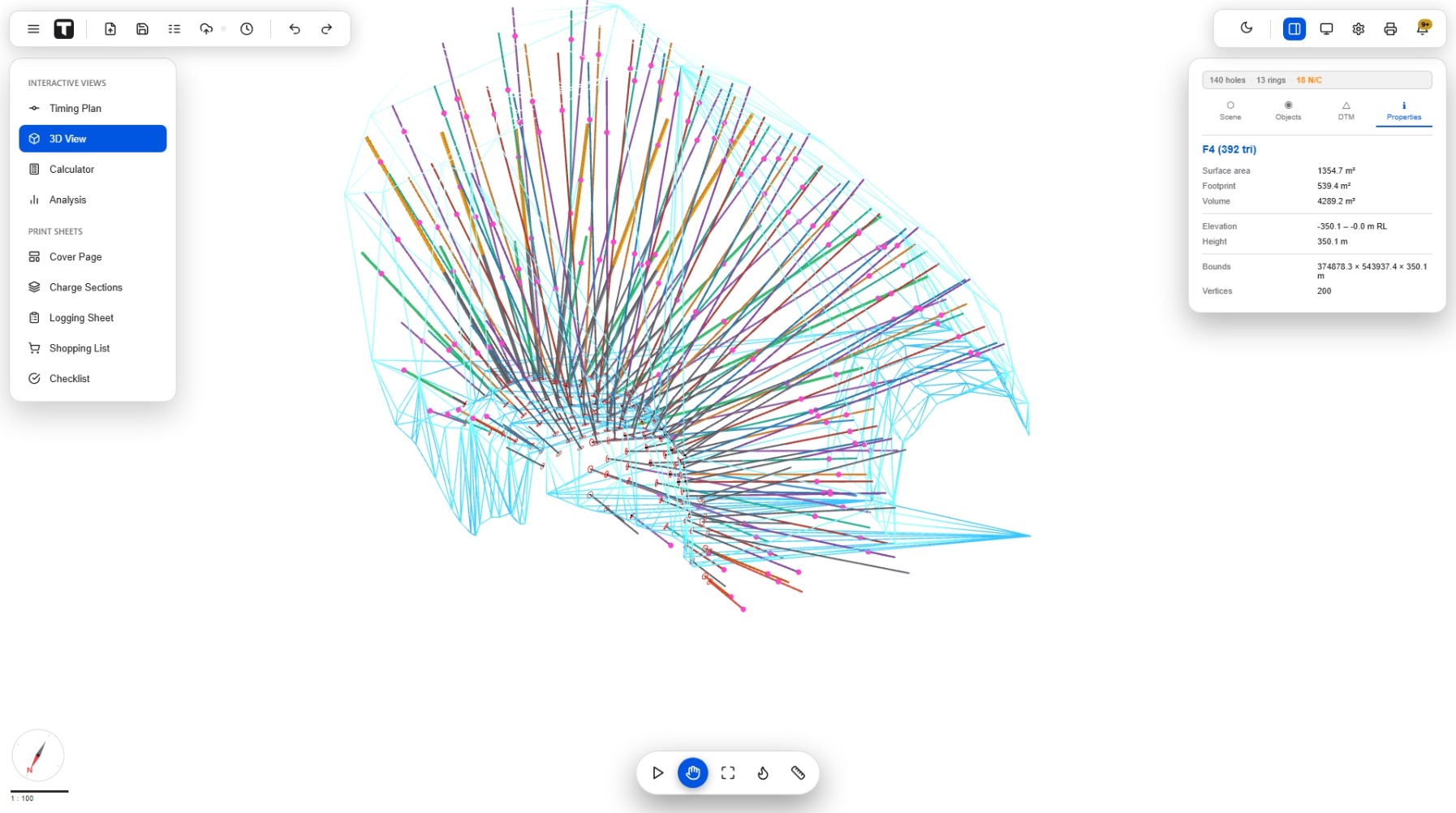
Add a surface (DTM)
Drop a .dtm or .str file onto the 3D view to place your holes against the real rock surface.
19Tools
Blast calculators
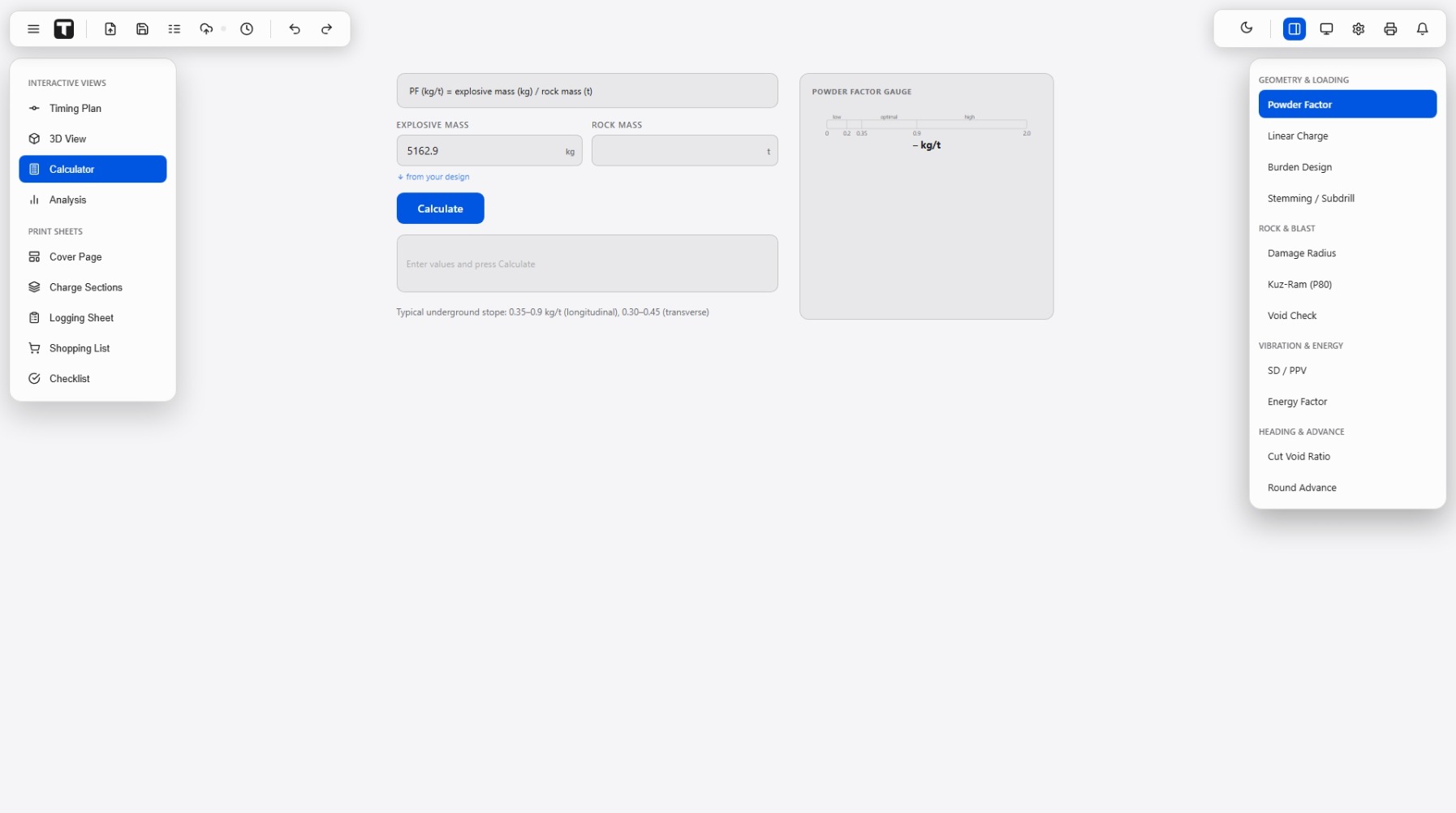
The Calculator view has the everyday blast maths built in, powder factor, burden, Kuz-Ram, PPV and more.
20Tools
Blast analysis
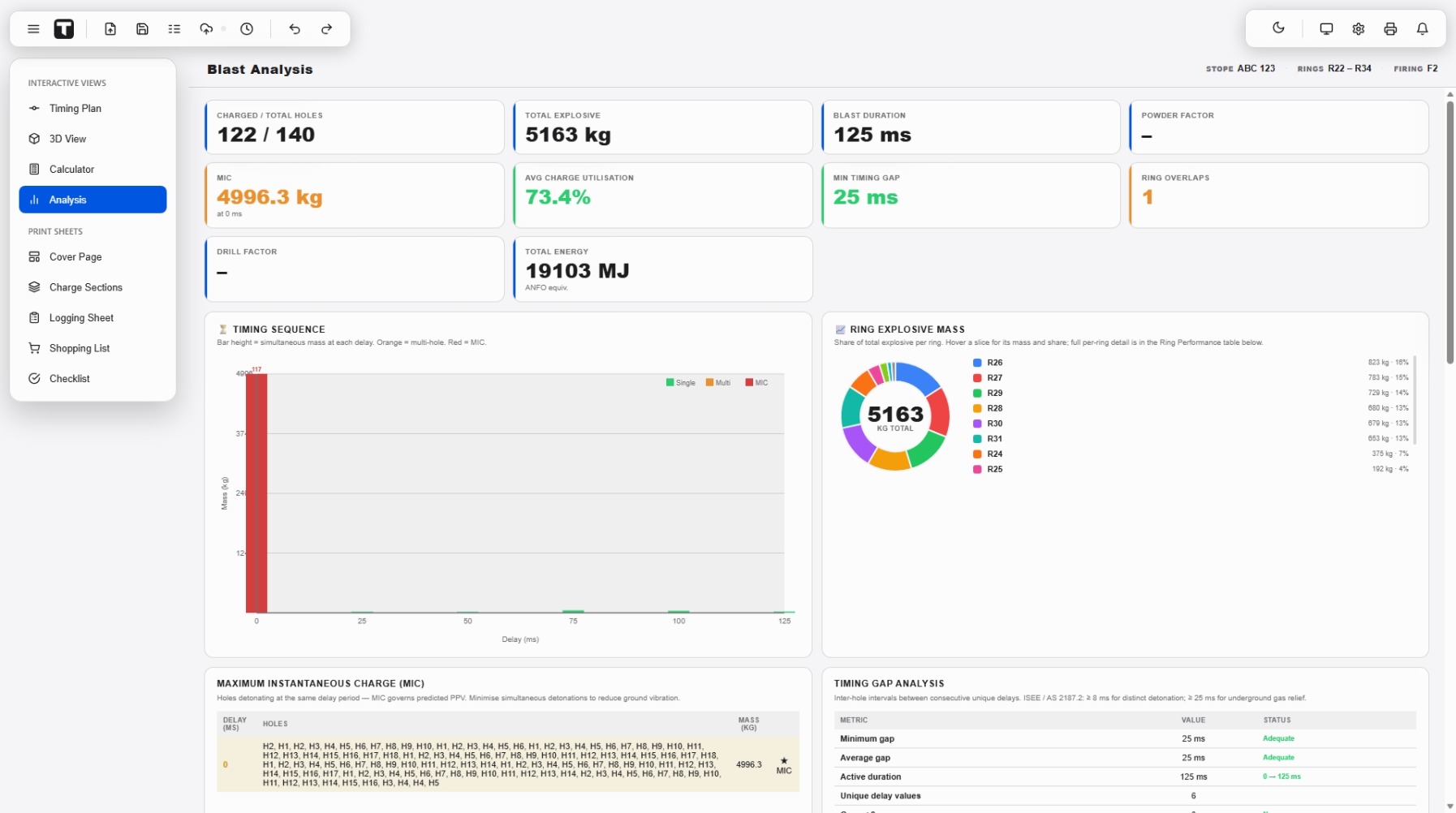
The Analysis view reads your plan and summarises it: charged holes, total explosive, MIC, timing gaps and energy per ring.
21Output
The document pack
One import produces the whole pack, cover page, charge sections, log sheet, shopping list and checklist, each in your branding.
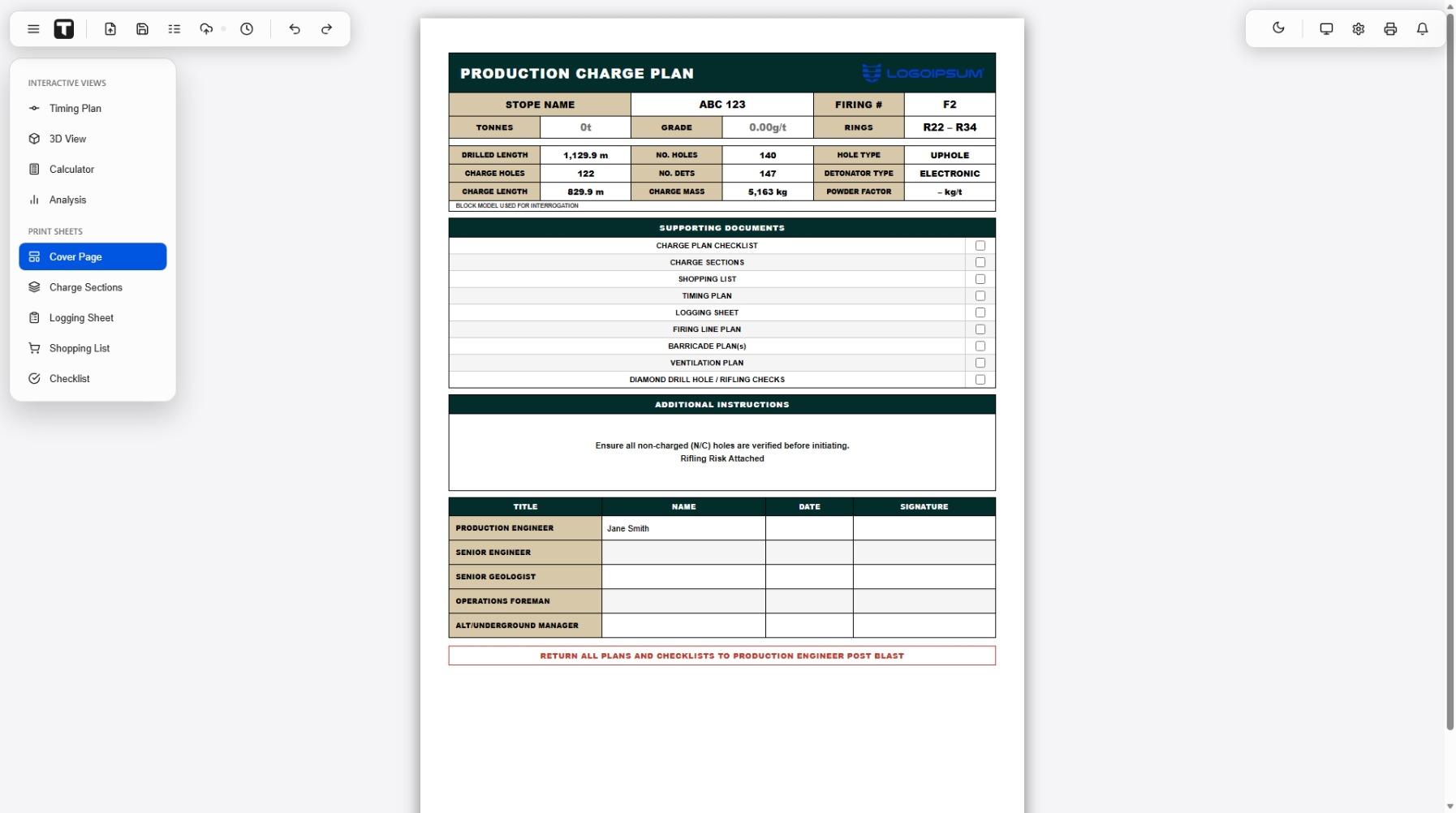
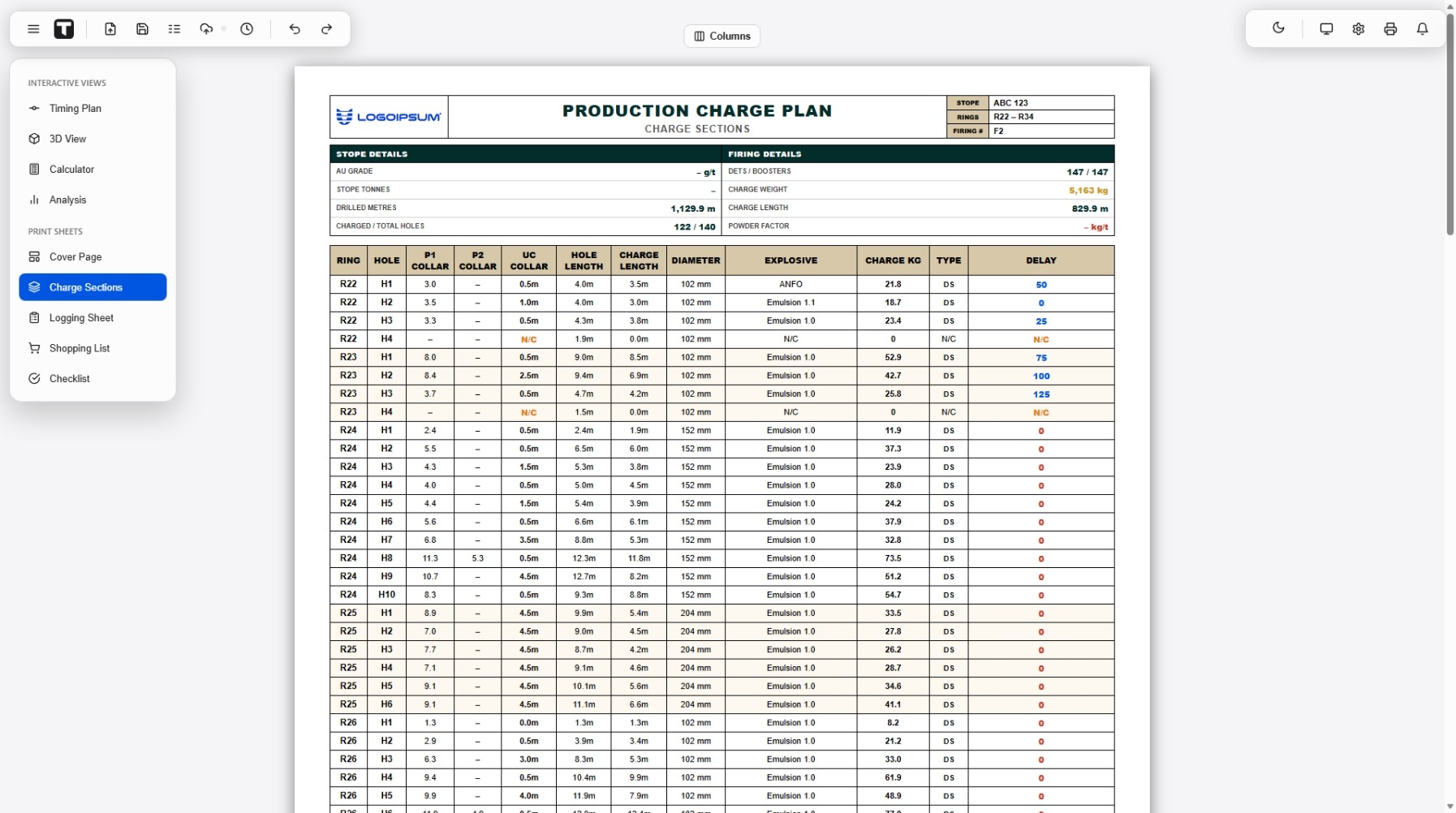
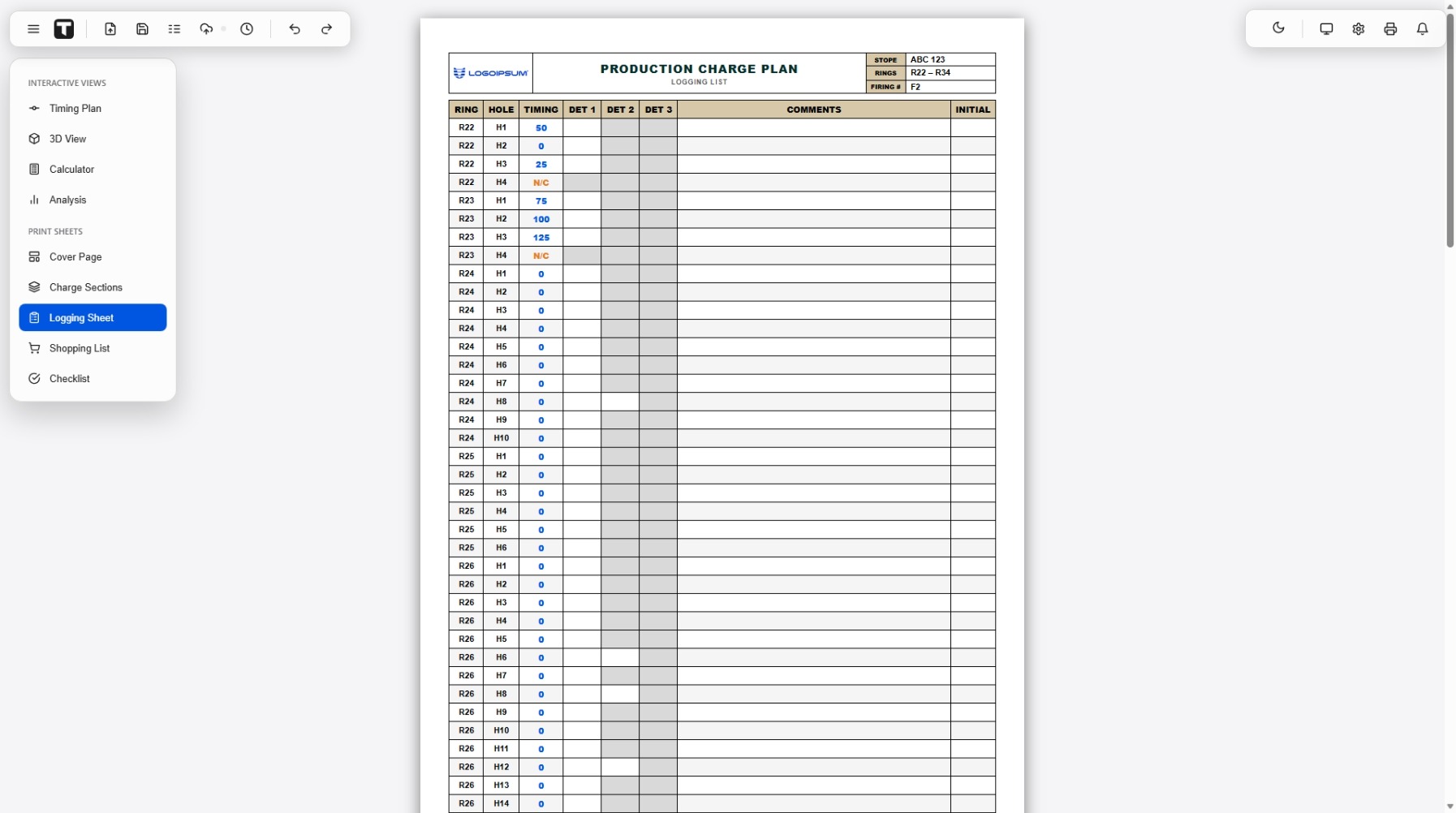
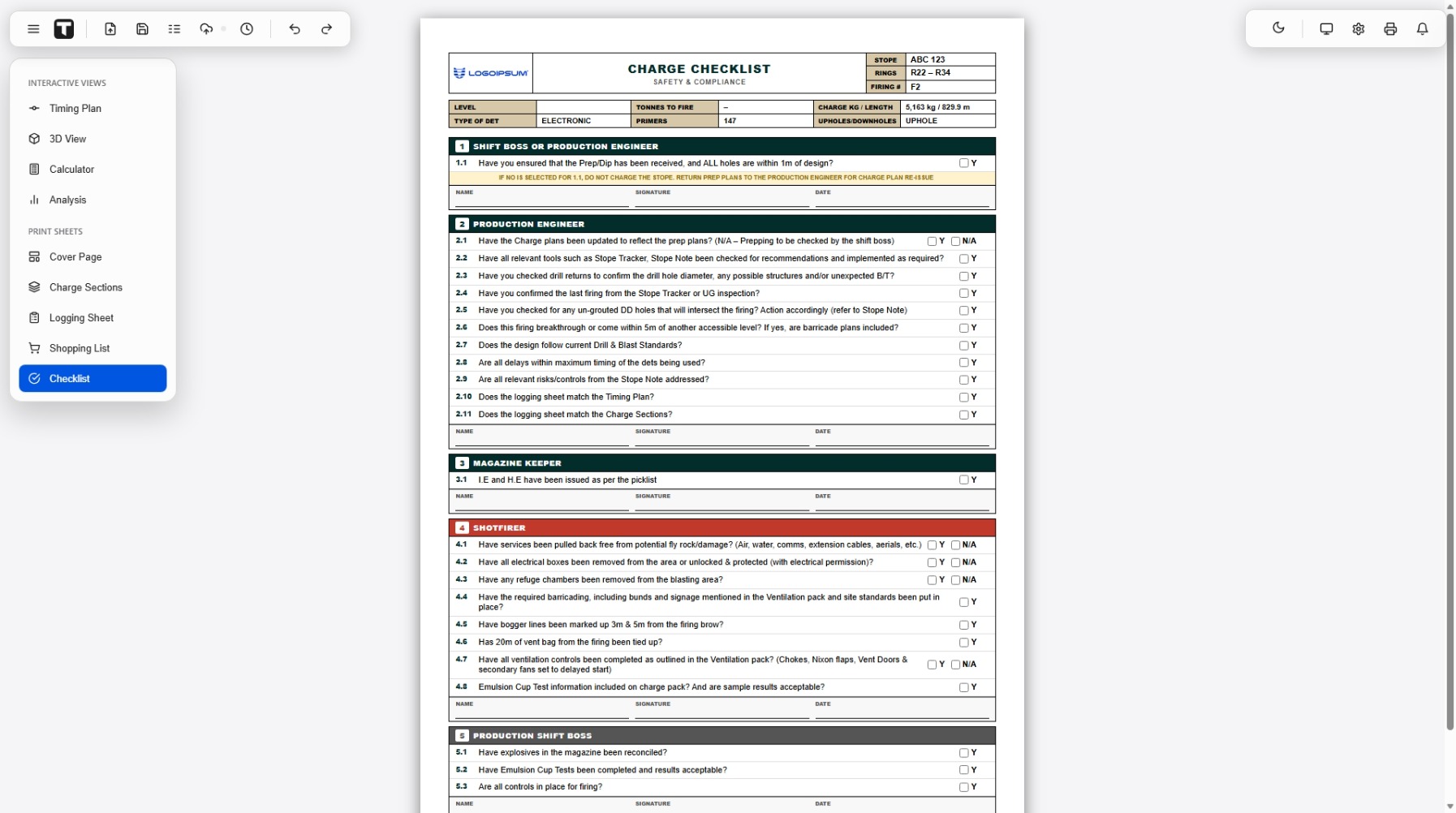
Switch between them in the left menu under Print Sheets. Edit the field labels and headings on any document from Settings → Documents.
22Output
Printing: whole plan or an area
Hit Print. On the timing plan you choose how much to print.
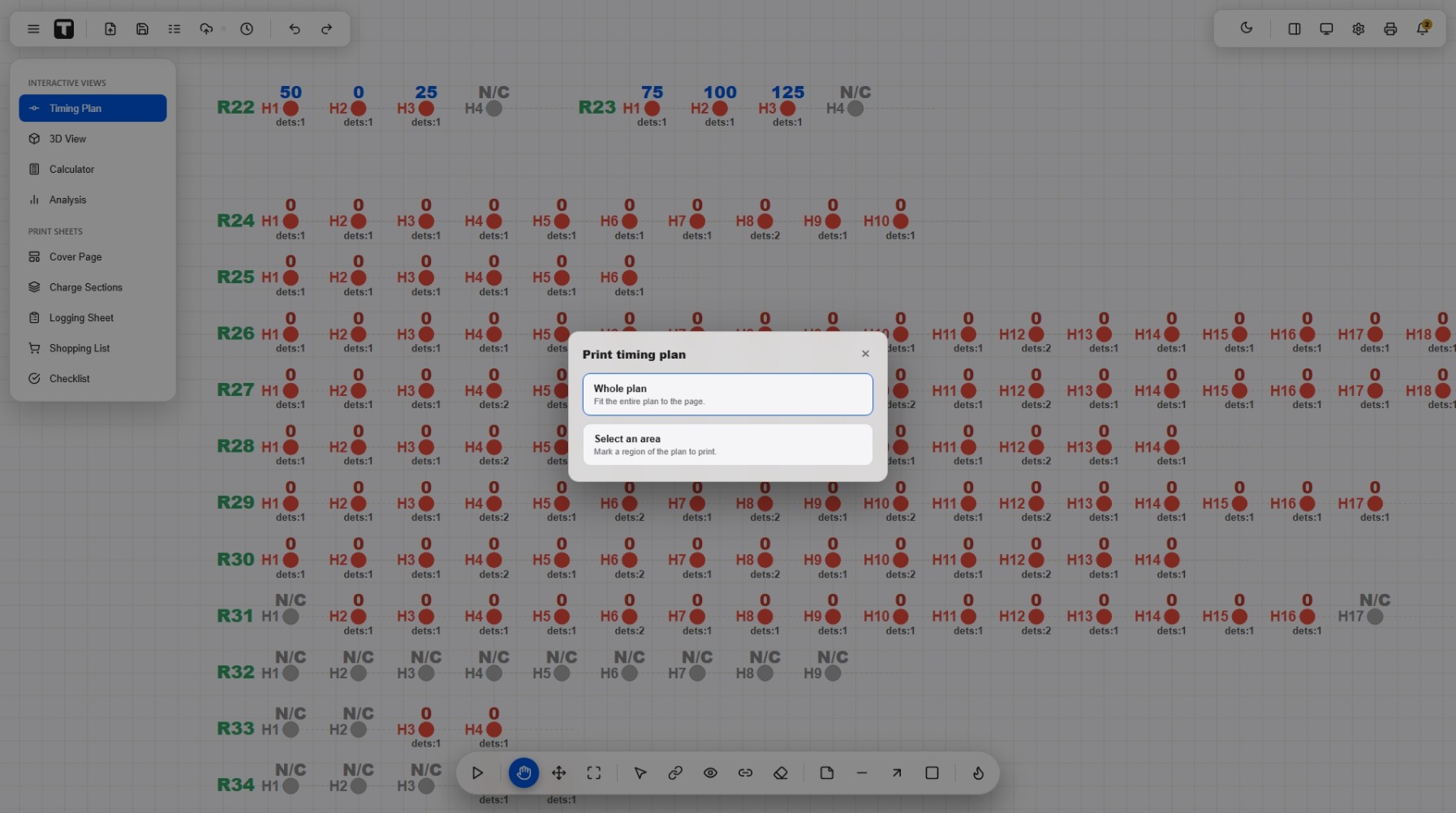
23Your work
Save, back up & restore
Your work saves as you go. You can keep plans in the cloud and pick up where you left off.
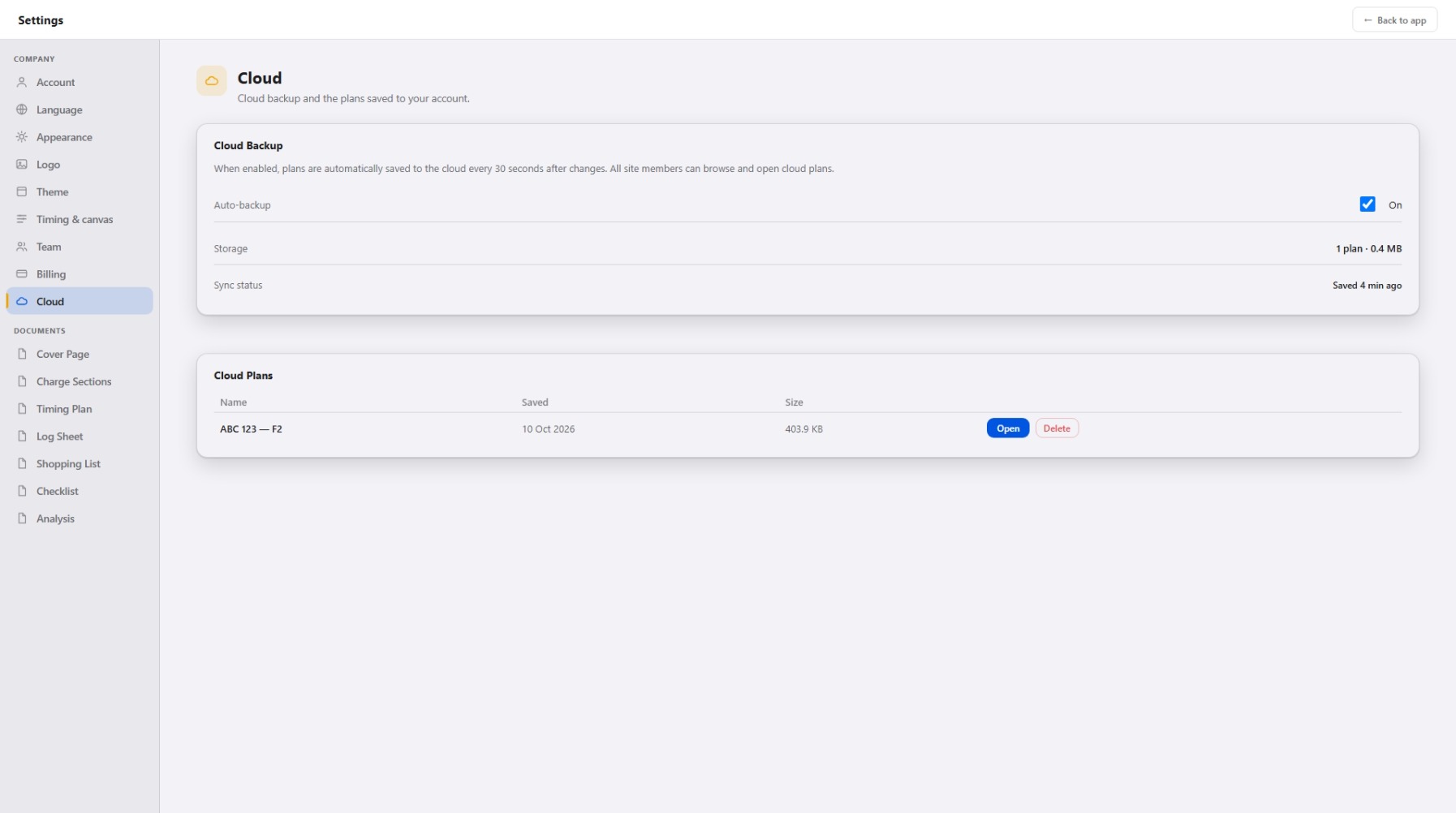
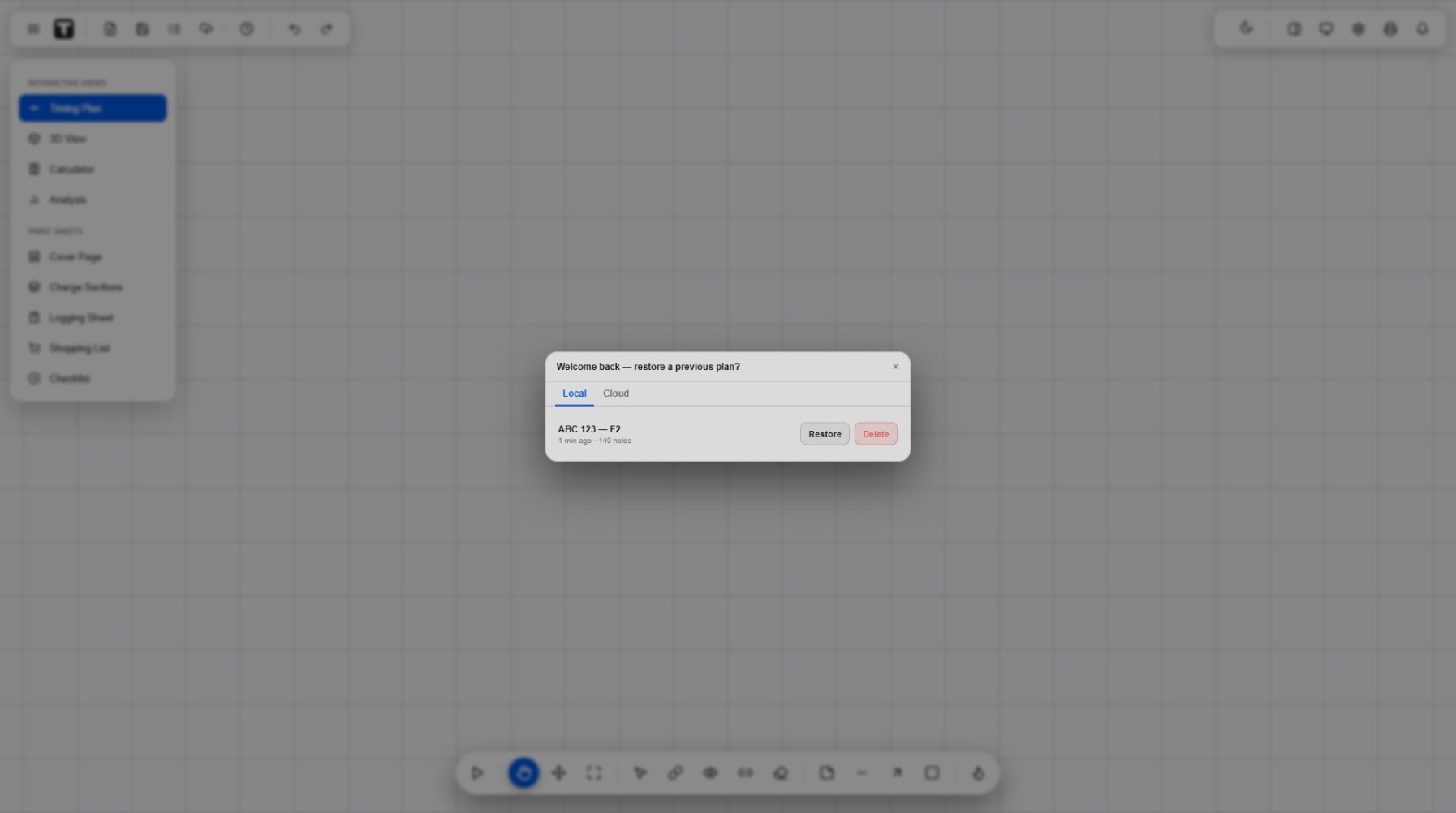
Use Save plan (cloud) and Recent in the toolbar, or Save CSV to download a file that re-opens with everything intact, delays, offsets and drawings.
24Make it yours
Branding & settings
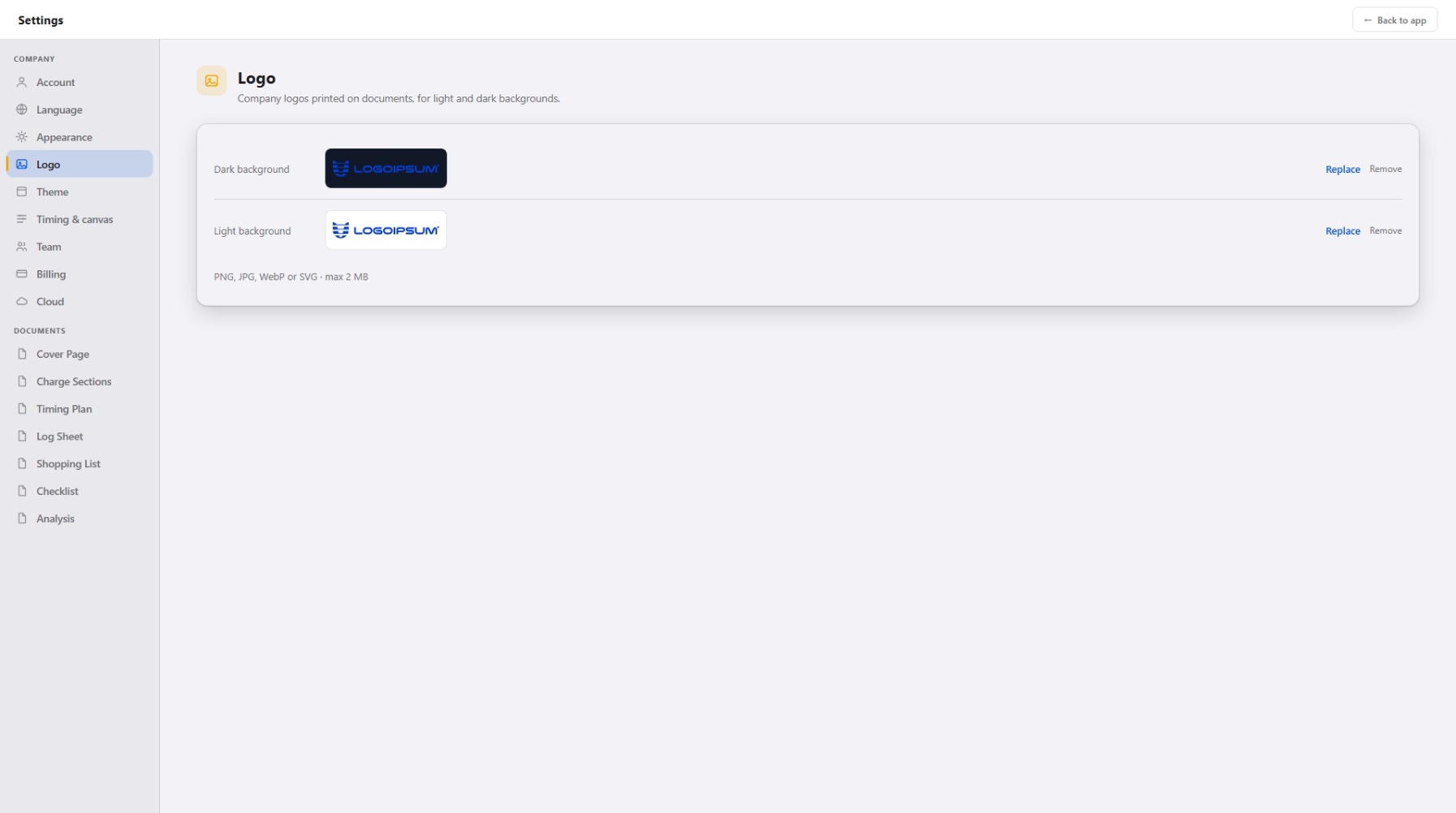
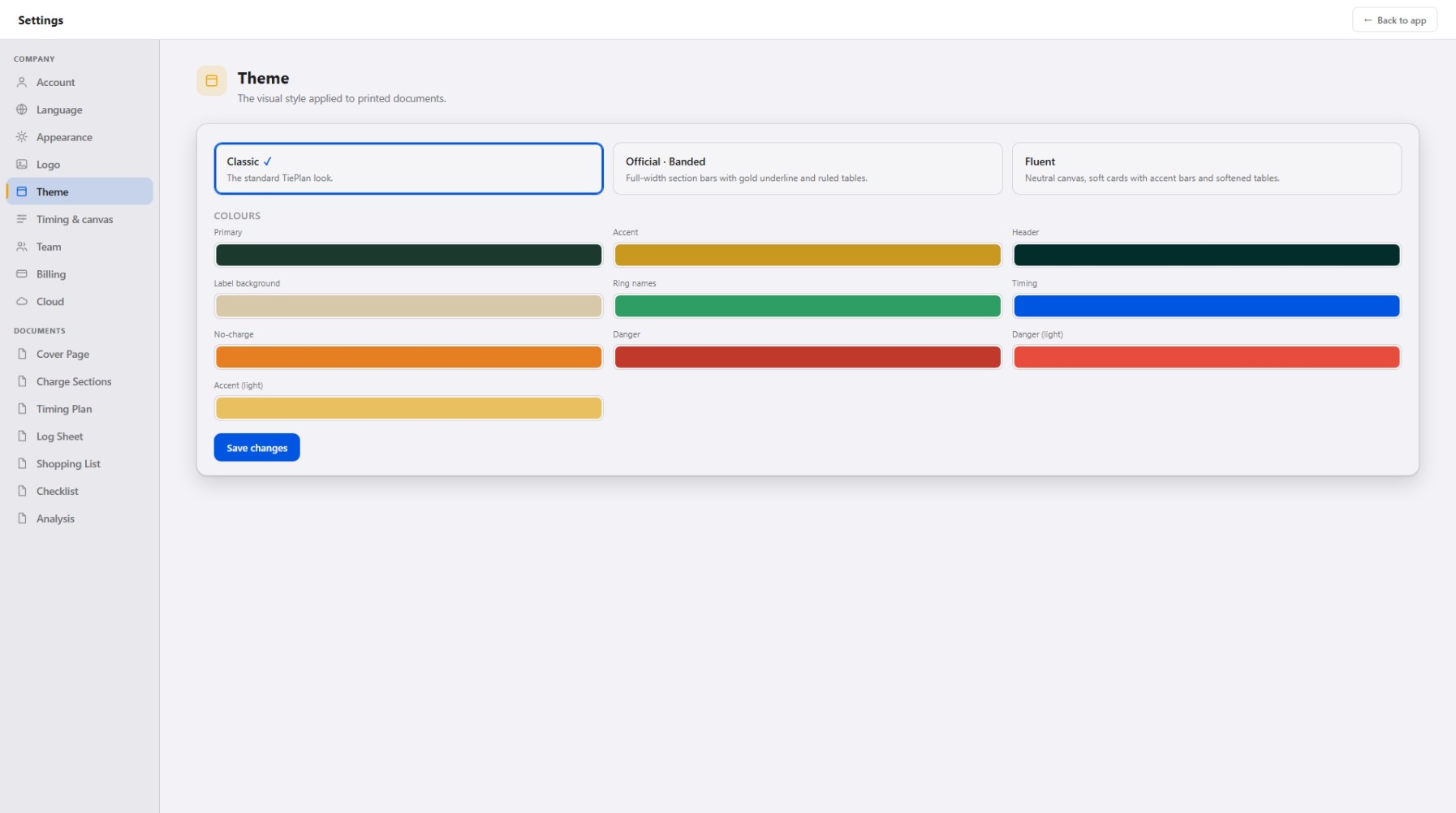
Put your company on every document. Upload a logo, choose a document theme, set the language, and switch between underground and open-pit mode.
25Make it yours
Team & roles
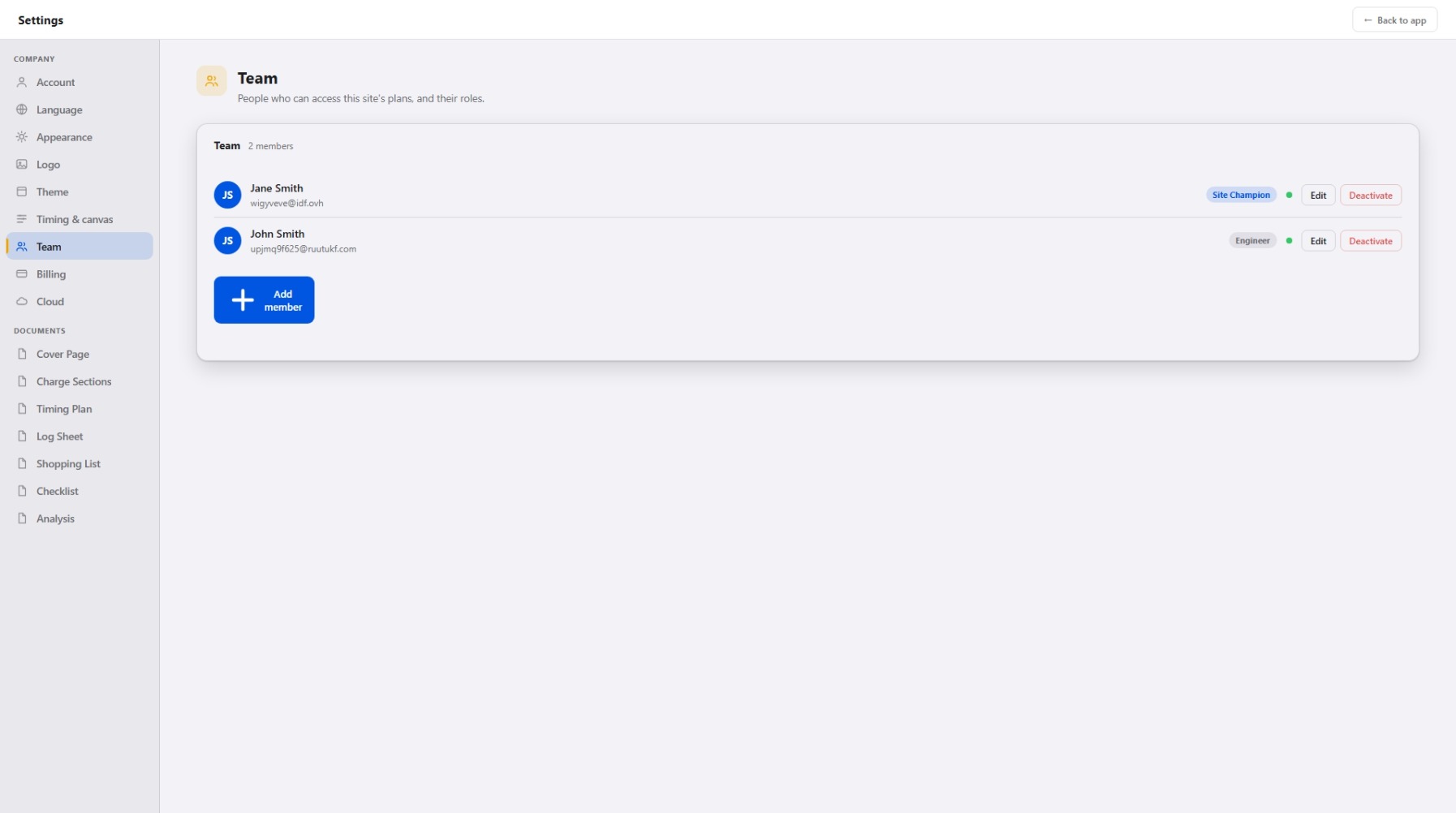
The Site Champion adds engineers to the site and sets their role, so every blast on site carries the same standard.
26Reference
Keyboard shortcuts
The handful of keys worth learning.
| Ctrl+Z / Ctrl+Y | Undo / redo |
| Ctrl+S | Save a CSV copy of the plan |
| Ctrl+C / V / D | Copy / paste / duplicate the selected shape |
| Delete | Delete the selected shape |
| Esc | Close a menu or popup, clear the selection |
| Shift + drag a hole | Move that hole and the rest of the row |
| Alt + drag a hole | Free diagonal placement (skip the axis lock) |
| Mouse wheel | Zoom toward the cursor |
| Ctrl+Shift+N | Open a second synced window |
| Enter / Esc in the delay panel | Apply the value / close |
That’s the whole workflow
Import a CSV, set the delays, tie up the holes, and print the pack, your branding, every time.
▶ Try the demo Open TiePlan